
The feature is a template extension and not a core function of the shop system. There is no dedicated configuration for it in the admin interface - control happens exclusively via the template files described here.
Prerequisites
For the product comparison to work meaningfully, the category field on the product must be maintained. If it is missing, products can still be compared, but without protection against cross-category comparisons. The shop requires a free product field that contains the category of a product as text (for example,Clothing, Electronics, Cat food). In the BestPractice shop, this field has the technical name mainCategory. If the field is empty on a product, that product is rejected when being added to an existing comparison list as soon as the list already has a category set (see How the product comparison works).
Terms and technical names at a glance
The session stores
compareIds as a comma-separated string ("123,456,789"), not as an array. The reason is that $wsSession.set() does not write a value for an empty array; an empty string, on the other hand, can be reliably stored and read. In the template, the string is split back into an array via split(",") on each call.How the product comparison works
When attempting to add a product to the comparison list, the shop checks the category in the following order:- The list is empty. The product is included regardless of its category. Its category (
mainCategory) is set as the session-wide comparison category (compareType). - The list already contains products and the category of the new product matches the set comparison category. The product is included.
- The category does not match (or is empty on the product). The product is not included. On the product page, a hint text with the currently valid category appears in place of the “Add” link.
The maximum number of comparable products is hard-coded in the template code (
len($compareIds) >= 4) and is not a setting in the admin interface. A different limit can only be achieved by changing this number directly in the template.Display in the shop
Button on the product detail page
On the product page, one of four variants appears depending on the state:Badge in the header
In the header, an icon with a counter shows the current number of compared products and links to the comparison page. The counter only appears if at least one product is in the list.Comparison page
The comparison page (views/compare.htm) lists all products of the current comparison list in a table: one product card per column (image, name, price, link to the product page), followed by price, item number, description, category, and all other maintained free fields. Fields that carry no value on any of the compared products are not displayed. Rows in which the values differ are highlighted with color so that differences can be recognized at a glance even with many fields.
If the list is empty, an empty state appears with a link back to the shop.
Modules
The following modules are used to implement the product comparison:- $wsSession - storing and reading the comparison list (
compareIds) and the set category (compareType). - Actions - overview -
SessionUpdateaction to write the session before the page is rendered. - $wsProducts - loading the product data for each ID in the comparison list on the comparison page.
Setup
The product comparison affects three template files: the product detail page (product.htm), the header (header.htm or the embedded header component), and a comparison page to be newly created (views/compare.htm). The following steps build on each other and should be implemented in this order.
Step 1: Provide the category field on the product
If it does not yet exist, create a free product field for the category (see Prerequisites). In this guide, the field is calledmainCategory. Maintain it on all products that should participate in the comparison.
Create the custom field
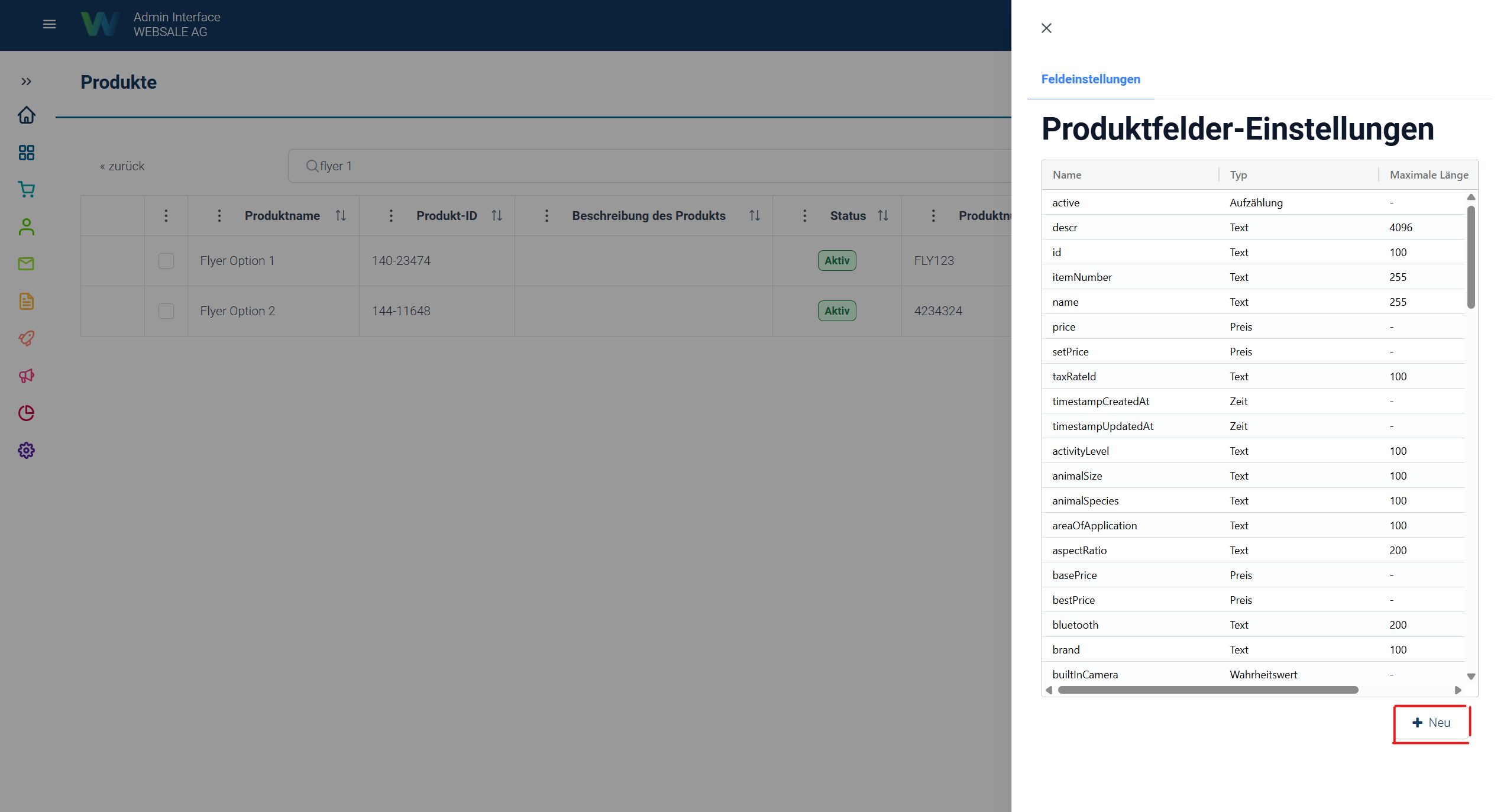
If such a field does not yet exist in your shop, you can create it in the admin interface as follows.- Under Catalog → Products → Settings → ”+ New”, a new product field can be created.
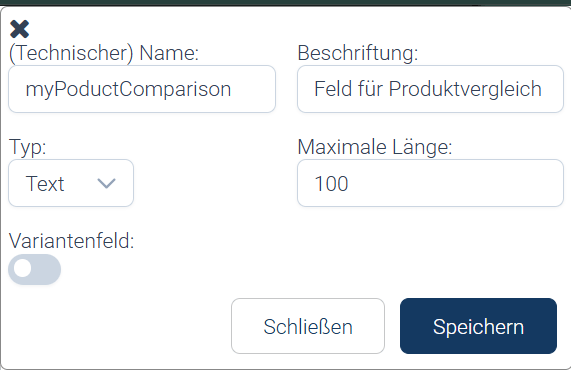
- Assign a unique technical name to your product field and save it.
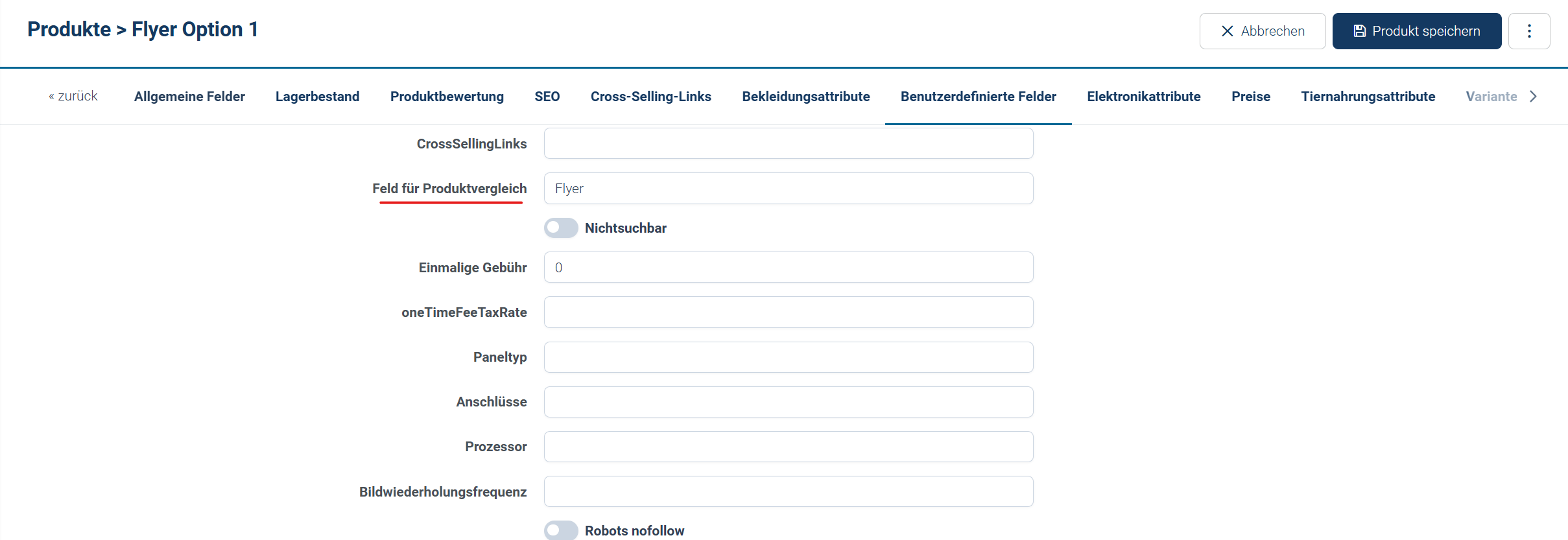
- Afterwards, the field is available on the product and can be filled in. In this example, the product type Flyer is used, matching the product Flyer Option 1.
Maintain the field on products
For the category check to work reliably, the field must be filled with a value on all products. Products without a value are excluded from the comparison as soon as a product with a value is already in the comparison list.Step 2: Read the comparison list in product.htm
Open product.htm and insert the following section at the very top of the content_main block, before the actual page output. It reads the current state of the comparison list from the session and prepares it for further use:
From this point on,
$compareIds is available as an array of product IDs, $compareType contains the currently set category or an empty string if the list is empty. Both variables are needed in the next steps.
Step 3: Add the button area in product.htm
At the location where the comparison button should appear (for example, below the basket form), insert the following block. It calculates the appropriate form content depending on the state and passes it to the SessionUpdate action. The maximum number of 4 products ($maxReached) can be adjusted here by changing the number to your desired limit:
On the product page, the appropriate button or hint text appears automatically depending on the current state (see Display in the shop).
Step 4: Add the badge in the header
Open the header file (header.htm or the correspondingly embedded component of your template) and insert the following block in the area of the other icons (watchlist, basket):
In the header, an icon with a counter appears that links to the comparison page. The counter updates when a product is added or removed without reloading the page.
Step 5: Create the comparison page
Create a new fileviews/compare.htm. It is a standalone view and is called via {{= $wsViews.viewUrl('compare.htm') }} (see step 4). The file first reads the session state - identical to step 2:
<!DOCTYPE html>, dedicated <head> with stylesheet, <body>). Since compare.htm is a standalone view, no shop layout is embedded - the header and footer areas of the page must be added yourself, if desired.
Within the page body, the “Clear comparison” button follows first:
{{ if len($compareIds) == 0 }} ... {{ else }} ...). Otherwise, the product data is loaded:
tag to distinguish them from each other:
The comparison page shows all products of the list with its own remove button per product and a button to completely clear the list.
Step 6: Build the comparison table with dynamic fields
The actual comparison table follows the product cards. Fixed rows such as price, item number, and category are output directly. For the remaining, freely maintained product fields, it is first determined which field names carry a value on at least one of the products:$skipFields contains the fields that are already output via their own, hard-coded table rows (for example the image or the category), so that they do not appear a second time in the dynamic list. Adjust this list to the field names used in your shop.Fields that carry no value on any of the compared products do not appear in the table. Rows in which the values differ between the products receive the CSS class
highlight and can thus be visually highlighted (for example, with a colored background).
Further links
- $wsSession - storing and reading session-wide values.
- Actions - overview - how actions work, in particular processing before rendering and execution via AJAX using
wsReplaceIds. - $wsProducts - loading individual products by their ID.
- $wsViews - generating view URLs for custom views such as
compare.htm.