
For stylesheets an identical procedure applies, with its own folders and its own tags, described in the guide “CSS”.
Folder structure
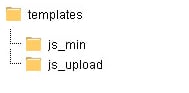
In the directory of your online shop you will find thetemplates folder, which contains all available templates as well as two folders for JavaScript:
js_upload folder. That is also where you edit and delete them. The js_min folder, on the other hand, is filled exclusively by the PageSpeed tool. All files it contains are minified and provided with URL fingerprinting. You do not edit these files yourself, because they are overwritten on the next publication.
If this folder structure does not yet exist in your shop, please create it accordingly. Without both folders the PageSpeed tool cannot work.
Creating and editing JavaScript files
Underbenutzer/templates/js_upload the sample shop already contains JavaScript files that you can use as templates. With an SFTP client you download existing files, extend them, and upload them again. You add your own files to the folder in the same way.
For the layout of the groupings, a two-part split has proven effective:
- one grouping with all globally used libraries and scripts that is loaded on every page
- further groupings per use case or page type, which are only loaded where the contained functions are needed
Including with the PageSpeed tool (recommended)
After you have provided your files via SFTP in thejs_upload folder, you assign them to the desired templates. We recommend the route via the PageSpeed tool, because it means your shop uses the minified files with URL fingerprinting rather than the unprocessed originals.
The route consists of three steps: activate the tool, group files, include the grouping in the template.
Only have non-minified file versions processed by the PageSpeed tool. Minifying an already minified file again can lead to errors.
Activate the PageSpeed tool
In the OSB “Configuration” service, the PageSpeed tool is visible by default and therefore active. If the tab is not present in your case, contact your WEBSALE contact. For the shop to actually access the generated files, an additional entry in the shop configurationshop.config is required. The parameter applies to CSS and JavaScript alike. Activation by WEBSALE is not necessary for this, but the folder structure described above must be in place.
Grouping JavaScript files
A JavaScript file can only be included via the PageSpeed tool if it is assigned to a grouping. The grouping is therefore the smallest unit that the shop later references. You create groupings in the Online Service Area (OSB) under the “Configuration” service. Choose the “PageSpeed tool” tab there and then the “JS” tab. In the left column under the heading “Groupings” you create as many page- or topic-specific groupings as you like. Each grouping is given a freely chosen grouping ID when it is created. In the examples on this page, this ID isstart.
The right column is divided in two:
- Under “Your JavaScript libraries” you find all files that you have provided via SFTP in the
js_uploadfolder. If a just-uploaded file is missing, click the refresh icon. - Under “WEBSALE JavaScript library” you find all scripts provided by WEBSALE V8s. You do not upload these yourself, they are already present on the server.
js_min folder. Each further click on the globe icon generates a new version, provided you have made content changes.
Reference: WEBSALE JavaScript library
Including a grouping as an external JavaScript file
An external JavaScript file has one decisive advantage: it is used by several templates but only needs to be loaded once by the browser. For each grouping ID, the PageSpeed tool already generates such a file. You include it with thescript HTML element at any position in your template. The path is delivered by the WS-JSURL() tag, in whose parentheses you specify the grouping ID.
Example: the start grouping is to be included in the <head> of the template.
753e2835a4 is the URL fingerprint. It changes with each new version of the grouping.
Reference: WS-JSURL()
Including a grouping inline
JavaScript functions do not have to be included via an external file. They can also be written directly into the HTML page. This is the right approach if your script contains WEBSALE tags or text variables. The disadvantage of classic inline inclusion does not apply here. You still maintain the function centrally in a file in thejs_upload folder and not on each individual page. The PageSpeed tool inserts the content during page assembly.
The content of all files of a grouping is delivered by the WS-JSInline() tag, in whose parentheses you specify the grouping ID.
Example: the scripts of the start grouping are to be included inline inside the <body>.
Direct access during the design phase
When you include files via the PageSpeed tool, changes to JavaScript files only become visible after a click on the globe icon. When building a new shop, this intermediate step is time-consuming because it has to be repeated after every correction. For this case, there is direct access. Instead of the generated files in thejs_min folder, the shop accesses the original files in the js_upload folder that are assigned to the grouping. Changes are then visible immediately after upload and a browser reload.
Direct access consists of two parts. First, a setting in the shop configuration shop.config that determines when the mode applies. Second, a bracketing in the template that covers both cases. The setting applies to CSS and JavaScript alike.
Permanent direct access
With the following setting, the shop permanently accesses the original files. This setting is recommended while you are building a shop and making frequent changes.Direct access on demand only
With the valueno, permanent direct access is deactivated. The shop then only accesses the original files when you call it with the parameter &jscssdirect-test=on. With &jscssdirect-test=off it returns to the files in the js_min folder.
Example: external JavaScript file with direct access
With direct access, the shop delivers each file of the grouping individually, not a combined file. The template must therefore iterate over all files of the grouping. The bracketingWS-DirectJS() with the grouping ID is used for this, and inside it the loop @WS-DirectJS, which delivers the path of one file per iteration via WS-DirectJSURL.
So that the template works in both states, the bracketing ST-DirectJSCSSTest encloses the direct access case and !ST-DirectJSCSSTest the normal case.
Example: the start grouping has the two files ws-module-bootstrap-ajaxmodal.js and ws-module-bootstrap-fillstars.js assigned to it.
Example: inline inclusion with direct access
Inline-embedded scripts can also be used with direct access. Instead of the path,WS-DirectJSInline here delivers the content of the respective file.
Example: the same two files are assigned to the start grouping.
Trying out new groupings in the design test mode
A new grouping does not have to be built into the live mode straight away. The bracketingST-DesignTest is available for all integration variants described. This way, only you see the new assignment in the design test mode, while visitors continue to receive the previous version.
Debug mode for troubleshooting in the browser
If the JavaScript directives do not take effect as intended, troubleshooting in a minified file is tedious. Therefore, you can suppress the inclusion of the minified file via a URL parameter and use the non-minified version in the browser instead. The PageSpeed tool stores this version in thejs_min folder at the same time as the minified file.
If you include your files via direct access, you do not need this mode. The browser gets the non-minified originals there anyway.
To activate, append the parameter &jscssminified-test=off to any shop call. The shop must be in test mode for this.
.min in the file name:
&jscssminified-test=on you return to the minified files:
Migration to the PageSpeed tool
If you already operate a shop that includes its JavaScript files without the PageSpeed tool, a separate guide will walk you through the migration. Materials: Guide to migration to the PageSpeed toolIncluding without the PageSpeed tool
Using the PageSpeed tool is not mandatory in WEBSALE V8s. You can also include JavaScript files in every template via a relative path or write scripts directly in the template. This route is simpler, but it does without minification and URL fingerprinting. When including via a relative path, thebase element must be considered. It defines the base for all relative references and usually points to the subshop template directory, for example benutzer/templates/Deutsch.
WEBSALE JavaScript library
With the WEBSALE JavaScript library, WEBSALE V8s provides all JavaScript plugins that are needed for the standard shop functions. You therefore do not have to rebuild these functions yourself. There are three expansion levels that differ in scope. Which one is right for you depends on how much you want to bring yourself:
Reference: WEBSALE JavaScript library
The basic pattern: module component and design component
All three expansion levels follow the same two-part pattern. Once you have understood this pattern, it applies equally to every library and every module. The module component is a central, cross-shop file on the WEBSALE server. It contains the actual function. WEBSALE maintains and updates it continuously, so you do not download it and do not store it in your shop directory. In the PageSpeed tool it is available under “WEBSALE JavaScript library”. Without the PageSpeed tool, you include it directly via its fixed path:js_upload folder. Afterwards it is available in the PageSpeed tool under “Your JavaScript libraries”.
ws-. Do not use this prefix for your own functions and variables as long as you use the WEBSALE JavaScript library.
System library and design component
The WEBSALE system library is the large complete package. It contains the jQuery JavaScript framework, the jQuery plugin Colorbox, and all WEBSALE-specific functions for features that use JavaScript or AJAX. It is already compressed, which reduces the transfer volume and shortens the loading time. Since all modules are in one file, you do not need a separate file for each function. Both can have a positive effect on your ranking. The appropriate design component is automatically delivered on request when a shop is provisioned. Contact your WEBSALE contact for this. With the PageSpeed tool (recommended): the system library is available in the OSB under “WEBSALE JavaScript library” and is assigned to a grouping via drag and drop. Clicking on the file name lets you view the content of the file. You download the design component, adapt it, and store it injs_upload, then you also assign it to a grouping. Inclusion in the template then takes place as described in the “Including with the PageSpeed tool” section.
js_upload.
Core library and design component
The WEBSALE core library is the small complete package. In contrast to the system library, it contains neither jQuery nor Colorbox, but only the WEBSALE-specific functions. The advantage: you can use your own jQuery version and are not tied to the one delivered by WEBSALE. Which jQuery libraries and plugins are mandatory is stated as a comment in the core library. The core library is available from version 1.8.2. Like the system library, it is a central system component that WEBSALE maintains continuously. It therefore does not have to be downloaded and does not have to be stored in the shop directory. It also requires a design component. Since jQuery is missing, one step is added: first download your desired jQuery library and store it in thejs_upload folder. Without loaded jQuery, the WEBSALE functions do not work.
Source (external link): jQuery
With the PageSpeed tool (recommended): first assign the jQuery library, then the core library from “WEBSALE JavaScript library”, and finally your adapted design component from “Your JavaScript libraries” to a grouping. Inclusion in the template then takes place as described in the “Including with the PageSpeed tool” section.
Without the PageSpeed tool: include the three components in this order in the template.
WS modules
The WEBSALE WS modules are individual functions that have been extracted from the system library and are available as standalone files. They are recognizable by the prefixws-module-. Neither the system library nor the core library is required for them.
The purpose of this split is the amount of data. If your shop only needs two of the functions, visitors only load those two files instead of the complete library.
The following modules are currently available:
- Basic component (prerequisite)
- Load dependent variants via AJAX
- Econda Cross Sell
- Input-dependent address data control
- Loading templates via AJAX
- Adding products to the wish list via AJAX
- Adding products to the shopping cart via AJAX
- Product recommendation function via AJAX
- Product comparison
- SEO content for products
- Web-to-Print
- Link shortener
- Password checker (“password strength indicator”)
Tracking file (ws_analyse.js)
The tracking filews_analyse.js is part of the WEBSALE V8s tracking interface. In the classic setup, it combines the tracking scripts of all providers in one place.
In connection with the PageSpeed tool, this file is no longer needed. Instead, you store each tracking script as a separate file in the js_upload folder and assign them all to a common grouping. You then include this grouping at the desired position on all pages. The advantage over the combined file is the same as with all groupings: the scripts are delivered minified and with URL fingerprinting.
Guide: Tracking interface
Notes on jQuery libraries
The jQuery library provided in the sample shop isjquery-2.2.2.min.js. We advise against changing this file, because this will cause you to lose jQuery’s update and compatibility capabilities.
jQuery is generally backward compatible. As a rule, you therefore benefit from an update of the jQuery file with extensions and bug fixes, without having to adapt your own scripts. Nevertheless, before an update, check the version notes of the manufacturer in order to be able to react to changes that affect your code.
Source (external link): jQuery