
For a GDPR-compliant integration with which you can obtain the shop visitor’s consent to the processing of personal data, see Guide: Consent to data processing (cookies).
Overview of the cookies used
An overview of the cookies used in a WEBSALE online shop can be found under Materials: Cookies used.Cookie Detection
Two methods are available for determining whether the browser supports cookies. The JavaScript method is the default; the redirect method is the older variant and only makes sense for exceptional cases. Following both methods, you will find an example of a notice for customers whose browser does not accept cookies.Integrating cookie detection with JavaScript (default)
When this detection method is used, WEBSALE V8s sends the first shop page called up at the beginning of the session with a JavaScript that is automatically inserted into the HTML code. This script checks whether the browser supports cookies — in other words, it performs what is known as cookie detection. You use this detection method if theCookieDetectionMethod parameter in the <Basic> section of your shop configuration shop.config is set to javascript. The JavaScript detection method is the default. It avoids the older redirect method described below, which only makes sense in exceptional cases.
Integrating cookie detection with redirect
WEBSALE V8s performs a redirect call of the shop and uses it to check whether the browser supports cookies. This redirect is executed automatically by the shop if theCookieDetectionMethod parameter in the <Basic> section of your shop configuration shop.config is set to redirect.
In this case, the parameter ?cc=y appears in the URL.
Adjusting the shop configuration
If necessary, the redirect method must be activated in your shop configurationshop.config in the <Basic> section by switching the CookieDetectionMethod parameter from javascript to redirect.
Provide a notice for buyers who do not accept cookies
If a customer’s browser does not accept cookies, we recommend integrating a notice. This lets you specifically inform the customer that placing an order in your online shop is not possible without accepting cookies for security reasons. Example:Displaying a cookie notice
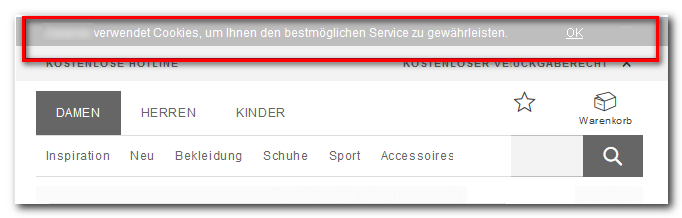
Step 1: Activation by WEBSALE
No activation by WEBSALE is required to embed the cookie notice.Step 2: Embed the WEBSALE system library
Check whether this file is already embedded and, if necessary, add it in the<head> section of the desired pages.
Step 3: Embed the script
Embed the script for displaying the notice in the<head> section of the desired pages:
Step 4: Integrate the function call
Integrate the following function call in the HTML header of the desired pages. Example:Step 5: Place the layer in the template
Add the layer for displaying the notice in the template. Example:display:none in your CSS file: