
Login via an external portal
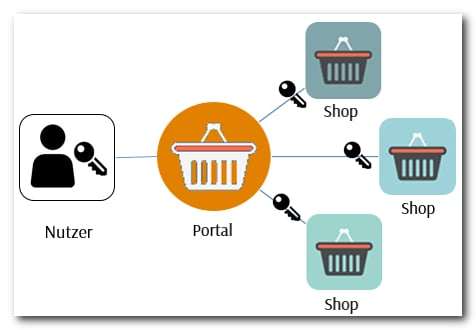
The identifier passed by the portal expires after two hours. After that, an old link from an email leads to the error page and not into the shop.
Step 1: Have the link set up
After you place the order, WEBSALE stores the special address of your shop in the portal. The identifier is passed as a parameter via this address.Step 2: Assign an error template
If something goes wrong, i.e. an invalid identifier, an unknown email address, an expired identifier or an internal error, the user lands on a page of your choice.Step 3: Create the error template
Create it under the assigned name in your template directory.The way back to the portal belongs on this page. Anyone who lands here is not logged in to the shop and cannot get any further via the shop navigation. Without this link, the page is a dead end.
Opening the basket only to logged-in buyers
A semi-closed shop shows its product range to everyone but only lets logged-in buyers order. There are two mutually reinforcing reasons for this:- Future trading partners can get an overview of the product range before deciding to work together.
- Categories and products remain reachable for search engines and get indexed. A completely closed shop is invisible to search engines.
Step 1: Enable the function
Activation by WEBSALE is not required.The check is only whether any customer is logged in at all. Anyone who is logged in may add products, everyone else may not.
Step 2: Define the message
If someone tries anyway, for example via a direct link, the shop shows this message.The message may contain HTML. Use this for the link to the login, otherwise the visitor knows what is missing but not where to go next.
Step 3: Switch the buttons
The message alone is not enough. An order button that does not work anyway should not be on the page in the first place.Related topics
- Guide: Login and registration
- Guide: Customer account
- Guide: Direct ordering