The three display types for dependent variants in WEBSALE V8s: select lists, links, and table, and when each one is appropriate.
Dependent variants are the specifications of a product that build on one another. For clothing, the first variant might be the size. Only once it is chosen does the dependent variant “color” become available.“Dependent” means two things here. First, each choice can change the price, image, product number, or description. Second, the combinations usually do not exist in full, so not every color is available in every size.For the display in the shop, three display types are available. Which one fits depends primarily on the number of variants and their combinations.
Display
The customer chooses
Suitable for
Select lists
one after another from select lists
any number of variants and combinations
Links
one after another via links
manageable quantities, up to 50 variants
Table
from all combinations at a glance
manageable quantities, up to 50 variants
How to create variants and their combinations in the first place is described in the admin interface documentation. This page only covers the display in the template.
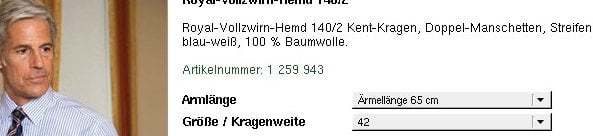
The customer chooses the dependent variants one after another from select lists. When the product is opened, only the first select list is initially available, for example the sleeve length. Only after this choice does the second appear, for example size and collar width.Example:
Selection of the first variant “sleeve length” when the product has been opened.
Selection of the second variant “size/collar width” after the “sleeve length” variant has been chosen.
This is the only display without a quantity limit. It is therefore the right choice as soon as a product has many variants or many combinations.Guide: Display dependent variants as select lists
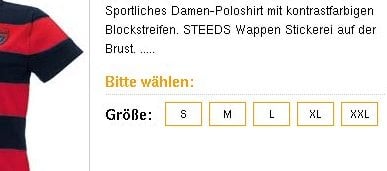
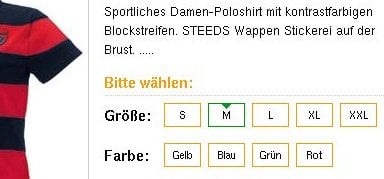
The workflow matches the select lists, except that the customer chooses via links instead of from a select list. For example, the sizes appear first, and after a size is chosen, the colors available for it appear.Example:
Selection of the first variant “size” when the product has been opened.
Selection of the second variant “color” after the “size” variant has been selected.
The advantage is that all values are visible at the same time and a single click is enough. That is exactly why this display is only suitable for manageable quantities, up to 50 variants.Guide: Display dependent variants as links
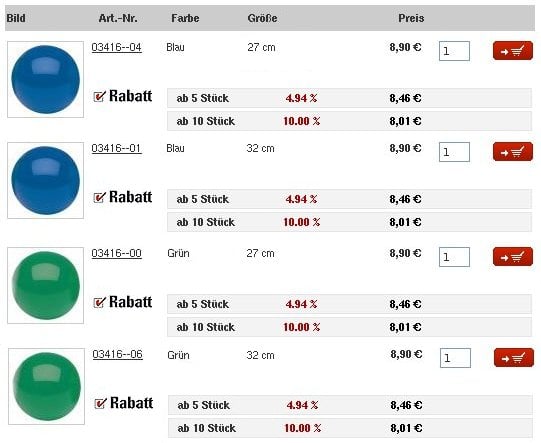
Here, the step-by-step selection is dropped. The customer sees all possible variant combinations at once in a table, for example the colors blue and green in the sizes 27 cm and 32 cm.Example:Display of all variant combinations of a product with the dependent variants “color” and “size” and the variant values “blue” and “green” or “27cm” and “32cm”.This is the clearest display when the customer wants to compare. It, too, is limited to a maximum of 50 variants.Guide: Display dependent variants as a table
Was this page helpful?
{"docsConfig":{"theme":"mint","$schema":"https://mintlify.com/docs.json","name":"WEBSALE Dokumentation","description":"Offizielle Dokumentation der E-Commerce-Plattform WEBSALE der WEBSALE AG. Sie umfasst Template-Engine, Shopkonfiguration, Admin-Interface, Schnittstellen, Strapi CMS und WEBSALE | search für die aktuelle Generation sowie für Version V8s.","colors":{"primary":"#0066CC"},"logo":{"light":"https://mintcdn.com/websaleag-44ee7ea6/yeKhhJTjoXWEQCsc/logo/Logo_WEBSALE_2024_Farbverlauf_RGB.png?fit=max\u0026auto=format\u0026n=yeKhhJTjoXWEQCsc\u0026q=85\u0026s=b96a564fcbb0d782bfeb7df19423835e","dark":"https://mintcdn.com/websaleag-44ee7ea6/yeKhhJTjoXWEQCsc/logo/Logo_WEBSALE_2024_Farbverlauf_RGB.png?fit=max\u0026auto=format\u0026n=yeKhhJTjoXWEQCsc\u0026q=85\u0026s=b96a564fcbb0d782bfeb7df19423835e","href":"/"},"favicon":"https://mintcdn.com/websaleag-44ee7ea6/yeKhhJTjoXWEQCsc/logo/favicon.ico?fit=max\u0026auto=format\u0026n=yeKhhJTjoXWEQCsc\u0026q=85\u0026s=5d387abffbbbc1811401ecb3afd2a807","footer":{"socials":{"linkedin":"https://www.linkedin.com/company/websale-ag"},"links":[{"items":[{"label":"Impressum","href":"https://websale.de/impressum"},{"label":"Datenschutz","href":"https://websale.de/datenschutz"}]}]},"search":{"prompt":"Durchsuchen"},"fonts":{"family":"Inter"},"styling":{"codeblocks":{"theme":{"light":"github-light","dark":"github-dark"},"languages":{"custom":["/languages/websale.json"]}},"latex":true},"navigation":{"languages":[{"language":"de","href":""},{"language":"en","href":"en"}]}},"deployment":{"deploymentMetadataValue":{"subdomain":"websaleag-44ee7ea6","hasAudioNarration":false,"actualSubdomain":"websaleag-44ee7ea6","customDomains":["dokumentation.websale.de"],"gitSource":{"type":"gitlab","owner":"websale-ag-group","repo":"dokumentation","deployBranch":"main","contentDirectory":"","isPrivate":false,"projectId":83013579,"mountPath":"","label":""},"chroma":{"liveDeploymentHistoryId":"6aeb9d52b68579879703242b","collectionId":"880d3256-45c3-441d-ae9d-914252efd9ff","schemaVersion":"v3","latestBuiltDeploymentHistoryId":"6aeb9d52b68579879703242b"},"feedback":{"thumbs":true,"agentFeedback":true},"entitlements":{"AI_CHAT":{"status":"ENABLED"},"WEB_MCP":{"status":"ENABLED"},"NARRATION":{"status":"ENABLED"}},"buildId":"6aed931e01ea23d695418b6d","clientVersion":"0.0.4074","searchFilterCounts":[{"language":"de","tag":"Version V8s","count":563},{"language":"de","tag":"Wegweiser","count":546},{"language":"de","tag":"Referenz","count":326},{"language":"en","tag":"Reference","count":326},{"language":"en","tag":"Version V8s","count":325},{"language":"en","tag":"Guide","count":248},{"language":"de","tag":"Neue Generation","count":245},{"language":"en","tag":"New generation","count":245},{"language":"de","tag":"Schnittstellen","count":174},{"language":"de","tag":"Tags","count":132},{"language":"en","tag":"Tags","count":132},{"language":"de","tag":"Frontend","count":93},{"language":"en","tag":"Frontend","count":93},{"language":"de","tag":"Konfiguration","count":76},{"language":"en","tag":"Configuration","count":76},{"language":"de","tag":"Bestellprozess","count":61},{"language":"en","tag":"Interfaces","count":60},{"language":"de","tag":"Materialien","count":58},{"language":"en","tag":"Reference – Modules","count":39},{"language":"en","tag":"Admin Interface API","count":36}],"searchSettings":{"isFiltersEnabled":true,"showContentSnippets":true}},"assistantConfig":{"enableAskAiButton":false,"enableStarterQuestions":false,"enableContextualStarterQuestions":false,"enableAskAiSearchBar":true,"deflection":{"enabled":true,"email":"support@websale.de","showHelpButton":false}},"basePath":"","hasChatPermissions":true,"hasWebMcpPermissions":true,"toggles":[{"name":"kill-isr","enabled":true,"variant":{"name":"disabled","enabled":false,"feature_enabled":true},"impressionData":false},{"name":"agent-mintlify-slack","enabled":true,"variant":{"name":"disabled","enabled":false,"feature_enabled":true},"impressionData":false},{"name":"agent-integrations-settings","enabled":true,"variant":{"name":"disabled","enabled":false,"feature_enabled":true},"impressionData":false},{"name":"rbac-expansion","enabled":true,"variant":{"name":"disabled","enabled":false,"feature_enabled":true},"impressionData":false},{"name":"automations-pr-grouping","enabled":true,"variant":{"name":"disabled","enabled":false,"feature_enabled":true},"impressionData":false},{"name":"custom-prefix","enabled":true,"variant":{"name":"disabled","enabled":false,"feature_enabled":true},"impressionData":false},{"name":"analytics-v7","enabled":true,"variant":{"name":"disabled","enabled":false,"feature_enabled":true},"impressionData":false},{"name":"user-flows-analytics","enabled":true,"variant":{"name":"disabled","enabled":false,"feature_enabled":true},"impressionData":false},{"name":"no-publish-flow","enabled":true,"variant":{"name":"disabled","enabled":false,"feature_enabled":true},"impressionData":false},{"name":"workos-onboarding","enabled":true,"variant":{"name":"disabled","enabled":false,"feature_enabled":true},"impressionData":false},{"name":"llms-txt-v2","enabled":true,"variant":{"name":"disabled","enabled":false,"feature_enabled":true},"impressionData":false},{"name":"snapshot-serving-live","enabled":true,"variant":{"name":"disabled","enabled":false,"feature_enabled":true},"impressionData":false},{"name":"stripTemperatureMiddleware","enabled":true,"variant":{"name":"disabled","enabled":false,"feature_enabled":true},"impressionData":false},{"name":"support-platform-pylon-zendesk","enabled":true,"variant":{"name":"disabled","enabled":false,"feature_enabled":true},"impressionData":false},{"name":"snapshot-serving","enabled":true,"variant":{"name":"disabled","enabled":false,"feature_enabled":true},"impressionData":false},{"name":"instant-rollback","enabled":true,"variant":{"name":"disabled","enabled":false,"feature_enabled":true},"impressionData":false},{"name":"granular-notifications-server","enabled":true,"variant":{"name":"disabled","enabled":false,"feature_enabled":true},"impressionData":false},{"name":"granular-notifications","enabled":true,"variant":{"name":"disabled","enabled":false,"feature_enabled":true},"impressionData":false},{"name":"automations-fable","enabled":true,"variant":{"name":"disabled","enabled":false,"feature_enabled":true},"impressionData":false},{"name":"fixed-ai-action-pricing","enabled":true,"variant":{"name":"disabled","enabled":false,"feature_enabled":true},"impressionData":false},{"name":"automation-resolve-merge-conflict","enabled":true,"variant":{"name":"disabled","enabled":false,"feature_enabled":true},"impressionData":false},{"name":"scoped-publishing","enabled":true,"variant":{"name":"disabled","enabled":false,"feature_enabled":true},"impressionData":false},{"name":"mintql","enabled":true,"variant":{"name":"disabled","enabled":false,"feature_enabled":true},"impressionData":false},{"name":"page-level-analytics","enabled":true,"variant":{"name":"disabled","enabled":false,"feature_enabled":true},"impressionData":false},{"name":"editor-version-history-v2","enabled":true,"variant":{"name":"disabled","enabled":false,"feature_enabled":true},"impressionData":false},{"name":"billing-page-v2","enabled":true,"variant":{"name":"disabled","enabled":false,"feature_enabled":true},"impressionData":false},{"name":"full-page-search","enabled":true,"variant":{"name":"disabled","enabled":false,"feature_enabled":true},"impressionData":false},{"name":"workspace-projects","enabled":true,"variant":{"name":"disabled","enabled":false,"feature_enabled":true},"impressionData":false},{"name":"assistant-v5","enabled":true,"variant":{"name":"disabled","enabled":false,"feature_enabled":true},"impressionData":false},{"name":"fork-pr-previews","enabled":true,"variant":{"name":"disabled","enabled":false,"feature_enabled":true},"impressionData":false},{"name":"revalidation-jwt","enabled":true,"variant":{"name":"disabled","enabled":false,"feature_enabled":true},"impressionData":false},{"name":"vite-origin","enabled":true,"variant":{"name":"disabled","enabled":false,"feature_enabled":true},"impressionData":false},{"name":"workos-sso-scim","enabled":true,"variant":{"name":"disabled","enabled":false,"feature_enabled":true},"impressionData":false},{"name":"hobby-abuse-scan","enabled":true,"variant":{"name":"disabled","enabled":false,"feature_enabled":true},"impressionData":false},{"name":"dashboard-inbox","enabled":true,"variant":{"name":"disabled","enabled":false,"feature_enabled":true},"impressionData":false},{"name":"workos-signup","enabled":true,"variant":{"name":"disabled","enabled":false,"feature_enabled":true},"impressionData":false},{"name":"turbopuffer-dual-write","enabled":true,"variant":{"name":"disabled","enabled":false,"feature_enabled":true},"impressionData":false},{"name":"workos-enabled","enabled":true,"variant":{"name":"disabled","enabled":false,"feature_enabled":true},"impressionData":false},{"name":"approve-review-flow","enabled":true,"variant":{"name":"disabled","enabled":false,"feature_enabled":true},"impressionData":false},{"name":"sso-setup-deadline-banner","enabled":true,"variant":{"name":"disabled","enabled":false,"feature_enabled":true},"impressionData":false},{"name":"turbopuffer-serve","enabled":true,"variant":{"name":"disabled","enabled":false,"feature_enabled":true},"impressionData":false},{"name":"live-agents","enabled":true,"variant":{"name":"disabled","enabled":false,"feature_enabled":true},"impressionData":false},{"name":"comment-mode","enabled":true,"variant":{"name":"disabled","enabled":false,"feature_enabled":true},"impressionData":false}],"googleFontsInlined":false},"customCss":[{"filePath":"style.css","content":"*:has(>[data-component-part=\"products-selector-trigger\"]){flex-shrink:0!important;min-width:fit-content!important}[data-component-part=\"products-selector-trigger\"]{flex-shrink:0!important;overflow:visible!important;max-width:none!important}[data-component-part=\"products-selector-trigger\"]>span{max-width:none!important;overflow:visible!important}"}],"page":{"pagePath":"en/v8s/abhaengige-varianten/abhaengige-varianten-anzeigen","slug":"/en/v8s/abhaengige-varianten/abhaengige-varianten-anzeigen","pageMetadata":{"title":"Display dependent variants","description":"The three display types for dependent variants in WEBSALE V8s: select lists, links, and table, and when each one is appropriate.","keywords":["variants","dependent variants","product detail view","variant combination"],"href":"/en/v8s/abhaengige-varianten/abhaengige-varianten-anzeigen"},"description":{"compiledSource":"\"use strict\";\nconst {jsx: _jsx} = arguments[0];\nconst {useMDXComponents: _provideComponents} = arguments[0];\nfunction _createMdxContent(props) {\n const _components = {\n p: \"p\",\n ..._provideComponents(),\n ...props.components\n };\n return _jsx(_components.p, {\n children: \"The three display types for dependent variants in WEBSALE V8s: select lists, links, and table, and when each one is appropriate.\"\n });\n}\nfunction MDXContent(props = {}) {\n const {wrapper: MDXLayout} = {\n ..._provideComponents(),\n ...props.components\n };\n return MDXLayout ? _jsx(MDXLayout, {\n ...props,\n children: _jsx(_createMdxContent, {\n ...props\n })\n }) : _createMdxContent(props);\n}\nreturn {\n default: MDXContent\n};\n","frontmatter":{},"scope":{}},"pageType":"default","mdx":{"mdxSource":{"compiledSource":"\"use strict\";const{Fragment:_Fragment,jsx:_jsx,jsxs:_jsxs}=arguments[0];const{useMDXComponents:_provideComponents}=arguments[0];function _createMdxContent(props){const _components={p:`p`,tbody:`tbody`,td:`td`,th:`th`,thead:`thead`,tr:`tr`,..._provideComponents(),...props.components},{Column,Columns,Heading,Note,OptimizedImage,Table}=_components;if(!Column)_missingMdxReference(`Column`,true);if(!Columns)_missingMdxReference(`Columns`,true);if(!Heading)_missingMdxReference(`Heading`,true);if(!Note)_missingMdxReference(`Note`,true);if(!OptimizedImage)_missingMdxReference(`OptimizedImage`,true);if(!Table)_missingMdxReference(`Table`,true);return _jsxs(_Fragment,{children:[_jsx(_components.p,{children:`Dependent variants are the specifications of a product that build on one another. For clothing, the first variant might be the size. Only once it is chosen does the dependent variant “color” become available.`}),`\n`,_jsx(_components.p,{children:`“Dependent” means two things here. First, each choice can change the price, image, product number, or description. Second, the combinations usually do not exist in full, so not every color is available in every size.`}),`\n`,_jsx(_components.p,{children:`For the display in the shop, three display types are available. Which one fits depends primarily on the number of variants and their combinations.`}),`\n`,_jsxs(Table,{children:[_jsx(_components.thead,{children:_jsxs(_components.tr,{children:[_jsx(_components.th,{children:`Display`}),_jsx(_components.th,{children:`The customer chooses`}),_jsx(_components.th,{children:`Suitable for`})]})}),_jsxs(_components.tbody,{children:[_jsxs(_components.tr,{children:[_jsx(_components.td,{children:`Select lists`}),_jsx(_components.td,{children:`one after another from select lists`}),_jsx(_components.td,{children:`any number of variants and combinations`})]}),_jsxs(_components.tr,{children:[_jsx(_components.td,{children:`Links`}),_jsx(_components.td,{children:`one after another via links`}),_jsx(_components.td,{children:`manageable quantities, up to 50 variants`})]}),_jsxs(_components.tr,{children:[_jsx(_components.td,{children:`Table`}),_jsx(_components.td,{children:`from all combinations at a glance`}),_jsx(_components.td,{children:`manageable quantities, up to 50 variants`})]})]})]}),`\n`,_jsx(Note,{children:_jsx(_components.p,{children:`How to create variants and their combinations in the first place is described in the admin interface documentation. This page only covers the display in the template. `})}),`\n`,_jsx(Heading,{level:`2`,id:`display-as-select-lists`,children:`Display as select lists`}),`\n`,_jsx(_components.p,{children:`The customer chooses the dependent variants one after another from select lists. When the product is opened, only the first select list is initially available, for example the sleeve length. Only after this choice does the second appear, for example size and collar width.`}),`\n`,_jsx(_components.p,{children:`Example:`}),`\n`,_jsxs(Columns,{cols:2,children:[_jsxs(Column,{children:[_jsx(OptimizedImage,{src:`https://mintcdn.com/websaleag-44ee7ea6/Dgb_SNFMeC9HkKBV/images/listbox1.jpg?fit=max\u0026auto=format\u0026n=Dgb_SNFMeC9HkKBV\u0026q=85\u0026s=ba37adbdfedd1ab771108942d65eaf41`,alt:`Listbox1`,\"data-og-width\":`588`,width:`588`,\"data-og-height\":`116`,height:`116`,\"data-path\":`images/listbox1.jpg`,\"data-optimize\":`true`,\"data-opv\":`3`,srcset:`https://mintcdn.com/websaleag-44ee7ea6/Dgb_SNFMeC9HkKBV/images/listbox1.jpg?w=280\u0026fit=max\u0026auto=format\u0026n=Dgb_SNFMeC9HkKBV\u0026q=85\u0026s=7fc38bec3f0c3c0d467224c678ee1c3b 280w, https://mintcdn.com/websaleag-44ee7ea6/Dgb_SNFMeC9HkKBV/images/listbox1.jpg?w=560\u0026fit=max\u0026auto=format\u0026n=Dgb_SNFMeC9HkKBV\u0026q=85\u0026s=2551dac9e5b701784dd4ed66edea861d 560w, https://mintcdn.com/websaleag-44ee7ea6/Dgb_SNFMeC9HkKBV/images/listbox1.jpg?w=840\u0026fit=max\u0026auto=format\u0026n=Dgb_SNFMeC9HkKBV\u0026q=85\u0026s=acf577cf5b4c76b1448e4eaaebb1dbaf 840w, https://mintcdn.com/websaleag-44ee7ea6/Dgb_SNFMeC9HkKBV/images/listbox1.jpg?w=1100\u0026fit=max\u0026auto=format\u0026n=Dgb_SNFMeC9HkKBV\u0026q=85\u0026s=d705e7410b5e889aa1f85489692fb412 1100w, https://mintcdn.com/websaleag-44ee7ea6/Dgb_SNFMeC9HkKBV/images/listbox1.jpg?w=1650\u0026fit=max\u0026auto=format\u0026n=Dgb_SNFMeC9HkKBV\u0026q=85\u0026s=1a34239cc9467720b2972782ae26aae8 1650w, https://mintcdn.com/websaleag-44ee7ea6/Dgb_SNFMeC9HkKBV/images/listbox1.jpg?w=2500\u0026fit=max\u0026auto=format\u0026n=Dgb_SNFMeC9HkKBV\u0026q=85\u0026s=26ef869e965a3cfcff78ca8b86258578 2500w`}),_jsx(_components.p,{children:`Selection of the first variant “sleeve length” when the product has been opened.`})]}),_jsxs(Column,{children:[_jsx(OptimizedImage,{src:`https://mintcdn.com/websaleag-44ee7ea6/Dgb_SNFMeC9HkKBV/images/listbox2.jpg?fit=max\u0026auto=format\u0026n=Dgb_SNFMeC9HkKBV\u0026q=85\u0026s=eb6ad8a089da1183ca5b835e75e741bc`,alt:`Listbox2`,\"data-og-width\":`593`,width:`593`,\"data-og-height\":`136`,height:`136`,\"data-path\":`images/listbox2.jpg`,\"data-optimize\":`true`,\"data-opv\":`3`,srcset:`https://mintcdn.com/websaleag-44ee7ea6/Dgb_SNFMeC9HkKBV/images/listbox2.jpg?w=280\u0026fit=max\u0026auto=format\u0026n=Dgb_SNFMeC9HkKBV\u0026q=85\u0026s=77fe0de4b8284bb161aeea402b3a5715 280w, https://mintcdn.com/websaleag-44ee7ea6/Dgb_SNFMeC9HkKBV/images/listbox2.jpg?w=560\u0026fit=max\u0026auto=format\u0026n=Dgb_SNFMeC9HkKBV\u0026q=85\u0026s=a82d9e08b91f67e6e2631bf542d7a63e 560w, https://mintcdn.com/websaleag-44ee7ea6/Dgb_SNFMeC9HkKBV/images/listbox2.jpg?w=840\u0026fit=max\u0026auto=format\u0026n=Dgb_SNFMeC9HkKBV\u0026q=85\u0026s=8aed1810d89cb23123026ccc51e1bd9f 840w, https://mintcdn.com/websaleag-44ee7ea6/Dgb_SNFMeC9HkKBV/images/listbox2.jpg?w=1100\u0026fit=max\u0026auto=format\u0026n=Dgb_SNFMeC9HkKBV\u0026q=85\u0026s=3f0300e6ac9ff3d1c70dc188cf251dc9 1100w, https://mintcdn.com/websaleag-44ee7ea6/Dgb_SNFMeC9HkKBV/images/listbox2.jpg?w=1650\u0026fit=max\u0026auto=format\u0026n=Dgb_SNFMeC9HkKBV\u0026q=85\u0026s=7309088390c3d35d67f80d7bdefbab2b 1650w, https://mintcdn.com/websaleag-44ee7ea6/Dgb_SNFMeC9HkKBV/images/listbox2.jpg?w=2500\u0026fit=max\u0026auto=format\u0026n=Dgb_SNFMeC9HkKBV\u0026q=85\u0026s=92a826fb561df020992030ea857d3827 2500w`}),_jsx(_components.p,{children:`Selection of the second variant “size/collar width” after the “sleeve length” variant has been chosen.`})]})]}),`\n`,_jsx(_components.p,{children:`This is the only display without a quantity limit. It is therefore the right choice as soon as a product has many variants or many combinations.`}),`\n`,_jsx(_components.p,{children:`Guide: Display dependent variants as select lists `}),`\n`,_jsx(Heading,{level:`2`,id:`display-as-links`,children:`Display as links`}),`\n`,_jsx(_components.p,{children:`The workflow matches the select lists, except that the customer chooses via links instead of from a select list. For example, the sizes appear first, and after a size is chosen, the colors available for it appear.`}),`\n`,_jsx(_components.p,{children:`Example:`}),`\n`,_jsxs(Columns,{cols:2,children:[_jsxs(Column,{children:[_jsx(OptimizedImage,{src:`https://mintcdn.com/websaleag-44ee7ea6/Dgb_SNFMeC9HkKBV/images/link1.jpg?fit=max\u0026auto=format\u0026n=Dgb_SNFMeC9HkKBV\u0026q=85\u0026s=1d7b3c679c52d56afa64acde8e08fdb1`,alt:`Link1`,\"data-og-width\":`387`,width:`387`,\"data-og-height\":`171`,height:`171`,\"data-path\":`images/link1.jpg`,\"data-optimize\":`true`,\"data-opv\":`3`,srcset:`https://mintcdn.com/websaleag-44ee7ea6/Dgb_SNFMeC9HkKBV/images/link1.jpg?w=280\u0026fit=max\u0026auto=format\u0026n=Dgb_SNFMeC9HkKBV\u0026q=85\u0026s=ceaa5550a8558227736b61b8c5d43785 280w, https://mintcdn.com/websaleag-44ee7ea6/Dgb_SNFMeC9HkKBV/images/link1.jpg?w=560\u0026fit=max\u0026auto=format\u0026n=Dgb_SNFMeC9HkKBV\u0026q=85\u0026s=46db58351970bf12334011b31cedec2b 560w, https://mintcdn.com/websaleag-44ee7ea6/Dgb_SNFMeC9HkKBV/images/link1.jpg?w=840\u0026fit=max\u0026auto=format\u0026n=Dgb_SNFMeC9HkKBV\u0026q=85\u0026s=185cc0cb45336868849597899cf772f1 840w, https://mintcdn.com/websaleag-44ee7ea6/Dgb_SNFMeC9HkKBV/images/link1.jpg?w=1100\u0026fit=max\u0026auto=format\u0026n=Dgb_SNFMeC9HkKBV\u0026q=85\u0026s=8da11cd6b96a68370790bb410021d0f4 1100w, https://mintcdn.com/websaleag-44ee7ea6/Dgb_SNFMeC9HkKBV/images/link1.jpg?w=1650\u0026fit=max\u0026auto=format\u0026n=Dgb_SNFMeC9HkKBV\u0026q=85\u0026s=016a390d19432f2dcc8a0ada05ba7801 1650w, https://mintcdn.com/websaleag-44ee7ea6/Dgb_SNFMeC9HkKBV/images/link1.jpg?w=2500\u0026fit=max\u0026auto=format\u0026n=Dgb_SNFMeC9HkKBV\u0026q=85\u0026s=cfc02099ae4116c9129073a07c75725b 2500w`}),_jsx(_components.p,{children:`Selection of the first variant “size” when the product has been opened.`})]}),_jsxs(Column,{children:[_jsx(OptimizedImage,{src:`https://mintcdn.com/websaleag-44ee7ea6/Dgb_SNFMeC9HkKBV/images/link2.jpg?fit=max\u0026auto=format\u0026n=Dgb_SNFMeC9HkKBV\u0026q=85\u0026s=e0dda0a6c19735d49fe39163d46510fd`,alt:`Link2`,\"data-og-width\":`384`,width:`384`,\"data-og-height\":`179`,height:`179`,\"data-path\":`images/link2.jpg`,\"data-optimize\":`true`,\"data-opv\":`3`,srcset:`https://mintcdn.com/websaleag-44ee7ea6/Dgb_SNFMeC9HkKBV/images/link2.jpg?w=280\u0026fit=max\u0026auto=format\u0026n=Dgb_SNFMeC9HkKBV\u0026q=85\u0026s=9ed2a6ef8412fb37f1c9d4d3f7f49f2b 280w, https://mintcdn.com/websaleag-44ee7ea6/Dgb_SNFMeC9HkKBV/images/link2.jpg?w=560\u0026fit=max\u0026auto=format\u0026n=Dgb_SNFMeC9HkKBV\u0026q=85\u0026s=1c4799d12fe559edab8002f231988b79 560w, https://mintcdn.com/websaleag-44ee7ea6/Dgb_SNFMeC9HkKBV/images/link2.jpg?w=840\u0026fit=max\u0026auto=format\u0026n=Dgb_SNFMeC9HkKBV\u0026q=85\u0026s=a49d525ba7e4375f32a9cb0fe9704219 840w, https://mintcdn.com/websaleag-44ee7ea6/Dgb_SNFMeC9HkKBV/images/link2.jpg?w=1100\u0026fit=max\u0026auto=format\u0026n=Dgb_SNFMeC9HkKBV\u0026q=85\u0026s=45d193a970f2b3ffc7d9ea1da66edefc 1100w, https://mintcdn.com/websaleag-44ee7ea6/Dgb_SNFMeC9HkKBV/images/link2.jpg?w=1650\u0026fit=max\u0026auto=format\u0026n=Dgb_SNFMeC9HkKBV\u0026q=85\u0026s=05c4f33196b07985d4e50829e3570123 1650w, https://mintcdn.com/websaleag-44ee7ea6/Dgb_SNFMeC9HkKBV/images/link2.jpg?w=2500\u0026fit=max\u0026auto=format\u0026n=Dgb_SNFMeC9HkKBV\u0026q=85\u0026s=e64a47a2575a63520eee39514759d1a3 2500w`}),_jsx(_components.p,{children:`Selection of the second variant “color” after the “size” variant has been selected.`})]})]}),`\n`,_jsx(_components.p,{children:`The advantage is that all values are visible at the same time and a single click is enough. That is exactly why this display is only suitable for manageable quantities, up to 50 variants.`}),`\n`,_jsx(_components.p,{children:`Guide: Display dependent variants as links `}),`\n`,_jsx(Heading,{level:`2`,id:`display-as-a-table`,children:`Display as a table`}),`\n`,_jsx(_components.p,{children:`Here, the step-by-step selection is dropped. The customer sees all possible variant combinations at once in a table, for example the colors blue and green in the sizes 27 cm and 32 cm.`}),`\n`,_jsx(_components.p,{children:`Example:`}),`\n`,_jsx(_components.p,{children:`Display of all variant combinations of a product with the dependent variants “color” and “size” and the variant values “blue” and “green” or “27cm” and “32cm”.`}),`\n`,_jsx(OptimizedImage,{src:`https://mintcdn.com/websaleag-44ee7ea6/Dgb_SNFMeC9HkKBV/images/tabelle.jpg?fit=max\u0026auto=format\u0026n=Dgb_SNFMeC9HkKBV\u0026q=85\u0026s=e305a489835692fec8b189bea4992184`,alt:`Tabelle`,\"data-og-width\":`541`,width:`541`,\"data-og-height\":`443`,height:`443`,\"data-path\":`images/tabelle.jpg`,\"data-optimize\":`true`,\"data-opv\":`3`,srcset:`https://mintcdn.com/websaleag-44ee7ea6/Dgb_SNFMeC9HkKBV/images/tabelle.jpg?w=280\u0026fit=max\u0026auto=format\u0026n=Dgb_SNFMeC9HkKBV\u0026q=85\u0026s=ae847d2a8ef4838d999cb416dcfed73a 280w, https://mintcdn.com/websaleag-44ee7ea6/Dgb_SNFMeC9HkKBV/images/tabelle.jpg?w=560\u0026fit=max\u0026auto=format\u0026n=Dgb_SNFMeC9HkKBV\u0026q=85\u0026s=828de5c7361c4b795bf084ce40002e0a 560w, https://mintcdn.com/websaleag-44ee7ea6/Dgb_SNFMeC9HkKBV/images/tabelle.jpg?w=840\u0026fit=max\u0026auto=format\u0026n=Dgb_SNFMeC9HkKBV\u0026q=85\u0026s=ae24b25a76a6e146a69b6941d4daaf07 840w, https://mintcdn.com/websaleag-44ee7ea6/Dgb_SNFMeC9HkKBV/images/tabelle.jpg?w=1100\u0026fit=max\u0026auto=format\u0026n=Dgb_SNFMeC9HkKBV\u0026q=85\u0026s=a5b58df7e3200b3d7e301150bc042c97 1100w, https://mintcdn.com/websaleag-44ee7ea6/Dgb_SNFMeC9HkKBV/images/tabelle.jpg?w=1650\u0026fit=max\u0026auto=format\u0026n=Dgb_SNFMeC9HkKBV\u0026q=85\u0026s=493d498c63e1263e259673bc88da562e 1650w, https://mintcdn.com/websaleag-44ee7ea6/Dgb_SNFMeC9HkKBV/images/tabelle.jpg?w=2500\u0026fit=max\u0026auto=format\u0026n=Dgb_SNFMeC9HkKBV\u0026q=85\u0026s=8b4816b1e343f94560531a136ae97a25 2500w`}),`\n`,_jsx(_components.p,{children:`This is the clearest display when the customer wants to compare. It, too, is limited to a maximum of 50 variants.`}),`\n`,_jsx(_components.p,{children:`Guide: Display dependent variants as a table `})]})}function MDXContent(props={}){const{wrapper:MDXLayout}={..._provideComponents(),...props.components};return MDXLayout?_jsx(MDXLayout,{...props,children:_jsx(_createMdxContent,{...props})}):_createMdxContent(props)}return{default:MDXContent};function _missingMdxReference(id,component){throw new Error(`Expected `+(component?`component`:`object`)+\" `\"+id+\"` to be defined: you likely forgot to import, pass, or provide it.\")}","frontmatter":{},"scope":{"codeStyling":{"theme":{"light":"github-light","dark":"github-dark"},"languages":{"custom":["/languages/websale.json"]}},"config":{},"pageMetadata":{"title":"Display dependent variants","description":"The three display types for dependent variants in WEBSALE V8s: select lists, links, and table, and when each one is appropriate.","keywords":["variants","dependent variants","product detail view","variant combination"],"href":"/en/v8s/abhaengige-varianten/abhaengige-varianten-anzeigen"}}},"mdxSourceWithNoJs":null},"mdxExtracts":{"tableOfContents":[{"title":"Display as select lists","slug":"display-as-select-lists","depth":2,"children":[]},{"title":"Display as links","slug":"display-as-links","depth":2,"children":[]},{"title":"Display as a table","slug":"display-as-a-table","depth":2,"children":[]}],"codeExamples":{}},"jsLinks":[],"subdomain":"websaleag-44ee7ea6","siteName":"WEBSALE Dokumentation","title":"Display dependent variants - WEBSALE Dokumentation","relatedPagesConfig":{"enabled":true,"limit":5,"mode":"automatic"},"navMaps":{"firstHrefInVersion":{},"firstHrefInLanguage":{"de":{"href":"/v8s/abhaengige-varianten/abhaengige-varianten-anzeigen","matchLevel":1},"en":{"href":"/en/v8s/abhaengige-varianten/abhaengige-varianten-anzeigen","matchLevel":0}}},"lastModified":"2026-09-11T13:56:34.680Z","originalFileLocation":"en/v8s/abhaengige-varianten/abhaengige-varianten-anzeigen.mdx","locale":"en"},"headHtml":"\u003cscript data-mint-head>(function(){var d=document.documentElement,p=null;if(!p){try{p=localStorage.getItem(\"isDarkMode\")}catch(e){}if(p==='true')p='dark';else if(p==='false')p='light';if(p!=='light'\u0026\u0026p!=='dark'\u0026\u0026p!=='system')p=\"system\"}var r=p==='system'?(matchMedia(\"(prefers-color-scheme: dark)\").matches?'dark':'light'):p;d.classList.remove(r==='dark'?'light':'dark');d.classList.add(r);d.setAttribute(\"data-theme-preference\",p)})();\u003c/script>\u003cmeta data-mint-head name=\"description\" content=\"The three display types for dependent variants in WEBSALE V8s: select lists, links, and table, and when each one is appropriate.\">\u003cmeta data-mint-head name=\"application-name\" content=\"WEBSALE Dokumentation\">\u003cmeta data-mint-head name=\"generator\" content=\"Mintlify\">\u003clink data-mint-head rel=\"icon\" type=\"image/png\" sizes=\"192x192\" href=\"/mintlify-assets/_mintlify/favicons/websaleag-44ee7ea6/b-DMHJEWRrC_pLQS/_generated/favicon/android-chrome-192x192.png\" media=\"(prefers-color-scheme: light)\">\u003clink data-mint-head rel=\"apple-touch-icon\" type=\"image/png\" sizes=\"180x180\" href=\"/mintlify-assets/_mintlify/favicons/websaleag-44ee7ea6/b-DMHJEWRrC_pLQS/_generated/favicon/apple-touch-icon.png\">\u003clink data-mint-head rel=\"icon\" type=\"image/png\" sizes=\"16x16\" href=\"/mintlify-assets/_mintlify/favicons/websaleag-44ee7ea6/b-DMHJEWRrC_pLQS/_generated/favicon/favicon-16x16.png\" media=\"(prefers-color-scheme: light)\">\u003clink data-mint-head rel=\"icon\" type=\"image/png\" sizes=\"32x32\" href=\"/mintlify-assets/_mintlify/favicons/websaleag-44ee7ea6/b-DMHJEWRrC_pLQS/_generated/favicon/favicon-32x32.png\" media=\"(prefers-color-scheme: light)\">\u003clink data-mint-head rel=\"shortcut icon\" type=\"image/x-icon\" href=\"/mintlify-assets/_mintlify/favicons/websaleag-44ee7ea6/b-DMHJEWRrC_pLQS/_generated/favicon/favicon.ico\" media=\"(prefers-color-scheme: light)\">\u003clink data-mint-head rel=\"icon\" type=\"image/png\" sizes=\"192x192\" href=\"/mintlify-assets/_mintlify/favicons/websaleag-44ee7ea6/b-DMHJEWRrC_pLQS/_generated/favicon-dark/android-chrome-192x192.png\" media=\"(prefers-color-scheme: dark)\">\u003clink data-mint-head rel=\"icon\" type=\"image/png\" sizes=\"16x16\" href=\"/mintlify-assets/_mintlify/favicons/websaleag-44ee7ea6/b-DMHJEWRrC_pLQS/_generated/favicon-dark/favicon-16x16.png\" media=\"(prefers-color-scheme: dark)\">\u003clink data-mint-head rel=\"icon\" type=\"image/png\" sizes=\"32x32\" href=\"/mintlify-assets/_mintlify/favicons/websaleag-44ee7ea6/b-DMHJEWRrC_pLQS/_generated/favicon-dark/favicon-32x32.png\" media=\"(prefers-color-scheme: dark)\">\u003clink data-mint-head rel=\"shortcut icon\" type=\"image/x-icon\" href=\"/mintlify-assets/_mintlify/favicons/websaleag-44ee7ea6/b-DMHJEWRrC_pLQS/_generated/favicon-dark/favicon.ico\" media=\"(prefers-color-scheme: dark)\">\u003cmeta data-mint-head property=\"og:title\" content=\"Display dependent variants - WEBSALE Dokumentation\">\u003cmeta data-mint-head property=\"og:description\" content=\"The three display types for dependent variants in WEBSALE V8s: select lists, links, and table, and when each one is appropriate.\">\u003cmeta data-mint-head property=\"og:site_name\" content=\"WEBSALE Dokumentation\">\u003cmeta data-mint-head property=\"og:url\" content=\"https://dokumentation.websale.de/en/v8s/abhaengige-varianten/abhaengige-varianten-anzeigen\">\u003cmeta data-mint-head property=\"og:type\" content=\"website\">\u003cmeta data-mint-head property=\"og:image\" content=\"https://websaleag-44ee7ea6.mintlify.site/_mintlify/api/og/v2?division=Dependent+variants\u0026amp;title=Display+dependent+variants\u0026amp;description=The+three+display+types+for+dependent+variants+in+WEBSALE+V8s%3A+select+lists%2C+links%2C+and+table%2C+and+when+each+one+is+appropriate.\u0026amp;theme=2f1e88ce90c5c698bc58bf46\u0026amp;signature=65278bfc3b856fb174fc0b7f8cdcff56b2edd08116407be9200ab347e76e0e72\">\u003cmeta data-mint-head property=\"og:image:width\" content=\"1200\">\u003cmeta data-mint-head property=\"og:image:height\" content=\"630\">\u003cmeta data-mint-head name=\"twitter:card\" content=\"summary_large_image\">\u003cmeta data-mint-head name=\"twitter:title\" content=\"Display dependent variants - WEBSALE Dokumentation\">\u003cmeta data-mint-head name=\"twitter:description\" content=\"The three display types for dependent variants in WEBSALE V8s: select lists, links, and table, and when each one is appropriate.\">\u003cmeta data-mint-head name=\"twitter:image\" content=\"https://websaleag-44ee7ea6.mintlify.site/_mintlify/api/og/v2?division=Dependent+variants\u0026amp;title=Display+dependent+variants\u0026amp;description=The+three+display+types+for+dependent+variants+in+WEBSALE+V8s%3A+select+lists%2C+links%2C+and+table%2C+and+when+each+one+is+appropriate.\u0026amp;theme=2f1e88ce90c5c698bc58bf46\u0026amp;signature=65278bfc3b856fb174fc0b7f8cdcff56b2edd08116407be9200ab347e76e0e72\">\u003cmeta data-mint-head name=\"twitter:image:width\" content=\"1200\">\u003cmeta data-mint-head name=\"twitter:image:height\" content=\"630\">\u003cmeta data-mint-head name=\"msapplication-config\" content=\"/mintlify-assets/_mintlify/favicons/websaleag-44ee7ea6/b-DMHJEWRrC_pLQS/_generated/favicon/browserconfig.xml\">\u003cmeta data-mint-head name=\"apple-mobile-web-app-title\" content=\"WEBSALE Dokumentation\">\u003cmeta data-mint-head name=\"msapplication-TileColor\" content=\"#0066CC\">\u003clink data-mint-head rel=\"canonical\" href=\"https://dokumentation.websale.de/en/v8s/abhaengige-varianten/abhaengige-varianten-anzeigen\">\u003clink data-mint-head rel=\"alternate\" type=\"application/xml\" href=\"/sitemap.xml\">\u003clink data-mint-head rel=\"alternate\" type=\"text/markdown\" href=\"/en/v8s/abhaengige-varianten/abhaengige-varianten-anzeigen.md\">\u003clink data-mint-head rel=\"alternate\" hreflang=\"en\" href=\"https://dokumentation.websale.de/en/v8s/abhaengige-varianten/abhaengige-varianten-anzeigen\">\u003clink data-mint-head rel=\"alternate\" hreflang=\"de\" href=\"https://dokumentation.websale.de/v8s/abhaengige-varianten/abhaengige-varianten-anzeigen\">\u003clink data-mint-head rel=\"alternate\" hreflang=\"x-default\" href=\"https://dokumentation.websale.de/v8s/abhaengige-varianten/abhaengige-varianten-anzeigen\">\u003cscript data-mint-head type=\"application/ld+json\">{\"@context\":\"https://schema.org\",\"@graph\":[{\"@type\":\"Organization\",\"@id\":\"https://dokumentation.websale.de/#organization\",\"name\":\"WEBSALE Dokumentation\",\"url\":\"https://dokumentation.websale.de\",\"logo\":{\"@type\":\"ImageObject\",\"url\":\"https://mintcdn.com/websaleag-44ee7ea6/yeKhhJTjoXWEQCsc/logo/Logo_WEBSALE_2024_Farbverlauf_RGB.png?fit=max\u0026auto=format\u0026n=yeKhhJTjoXWEQCsc\u0026q=85\u0026s=b96a564fcbb0d782bfeb7df19423835e\"}},{\"@type\":\"WebSite\",\"@id\":\"https://dokumentation.websale.de#website\",\"name\":\"WEBSALE Dokumentation\",\"url\":\"https://dokumentation.websale.de\",\"publisher\":{\"@id\":\"https://dokumentation.websale.de/#organization\"}},{\"@type\":\"WebPage\",\"@id\":\"https://dokumentation.websale.de/en/v8s/abhaengige-varianten/abhaengige-varianten-anzeigen#webpage\",\"url\":\"https://dokumentation.websale.de/en/v8s/abhaengige-varianten/abhaengige-varianten-anzeigen\",\"name\":\"Display dependent variants\",\"description\":\"The three display types for dependent variants in WEBSALE V8s: select lists, links, and table, and when each one is appropriate.\",\"dateModified\":\"2026-09-11T13:56:34.680Z\",\"isPartOf\":{\"@id\":\"https://dokumentation.websale.de#website\"},\"breadcrumb\":{\"@id\":\"https://dokumentation.websale.de/en/v8s/abhaengige-varianten/abhaengige-varianten-anzeigen#breadcrumb\"}},{\"@type\":\"BreadcrumbList\",\"@id\":\"https://dokumentation.websale.de/en/v8s/abhaengige-varianten/abhaengige-varianten-anzeigen#breadcrumb\",\"itemListElement\":[{\"@type\":\"ListItem\",\"position\":1,\"name\":\"Guide\",\"item\":\"https://dokumentation.websale.de/en/v8s/einstellungen/cookies\"},{\"@type\":\"ListItem\",\"position\":2,\"name\":\"Display dependent variants\",\"item\":\"https://dokumentation.websale.de/en/v8s/abhaengige-varianten/abhaengige-varianten-anzeigen\"}]},{\"@type\":[\"Article\",\"TechArticle\"],\"@id\":\"https://dokumentation.websale.de/en/v8s/abhaengige-varianten/abhaengige-varianten-anzeigen#article\",\"headline\":\"Display dependent variants\",\"name\":\"Display dependent variants\",\"description\":\"The three display types for dependent variants in WEBSALE V8s: select lists, links, and table, and when each one is appropriate.\",\"url\":\"https://dokumentation.websale.de/en/v8s/abhaengige-varianten/abhaengige-varianten-anzeigen\",\"mainEntityOfPage\":{\"@id\":\"https://dokumentation.websale.de/en/v8s/abhaengige-varianten/abhaengige-varianten-anzeigen#webpage\"},\"dateModified\":\"2026-09-11T13:56:34.680Z\",\"keywords\":\"variants, dependent variants, product detail view, variant combination\",\"publisher\":{\"@id\":\"https://dokumentation.websale.de/#organization\"},\"isPartOf\":{\"@id\":\"https://dokumentation.websale.de#website\"}}]}\u003c/script>\u003cscript data-mint-head type=\"application/ld+json\">{\"@context\":\"https://schema.org\",\"@type\":\"WebSite\",\"name\":\"WEBSALE Dokumentation\",\"creator\":{\"@type\":\"Organization\",\"name\":\"Mintlify\",\"url\":\"https://mintlify.com\"}}\u003c/script>","siteName":"WEBSALE Dokumentation","nav":{"global":null,"languages":[{"language":"de","pages":[{"title":"de","href":"/v8s/abhaengige-varianten/abhaengige-varianten-anzeigen"}]},{"language":"en","products":[{"product":"New generation","icon":"rocket","description":"Current product generation","pages":[{"title":"New generation","href":"/en"}]},{"product":"Version V8s","icon":"clock-rotate-left","description":"Documentation of the WEBSALE V8s generation","tabs":[{"tab":"Basics","pages":[{"title":"Basics","href":"/en/v8s"}]},{"tab":"Guide","groups":[{"group":"Guide","pages":[{"group":"Specifications and settings","pages":[{"title":"Cookies","href":"/en/v8s/einstellungen/cookies"},{"title":"Show the date and time of the last update","href":"/en/v8s/einstellungen/datum-und-uhrzeit-der-letzten-aktualisierung-anzeigen"},{"group":"Domains and shop URL","pages":[{"title":"Domains and shop call: basics","href":"/en/v8s/domains/grundlagen-domains-und-shop-aufruf"},{"title":"Internal links","href":"/en/v8s/domains/interne-verlinkungen"},{"title":"External links","href":"/en/v8s/domains/externe-verlinkungen"},{"title":"Enabling and disabling shop test modes","href":"/en/v8s/domains/testmodi-des-shops-ein-ausschalten"},{"title":"Calling the release version","href":"/en/v8s/domains/aufrufen-der-release-version"}]},{"title":"Consent to data processing (cookies)","href":"/en/v8s/einstellungen/einwilligung-zur-datenverarbeitung-cookies"},{"title":"Notice for outdated browser version","href":"/en/v8s/einstellungen/hinweis-auf-veraltete-browserversion"},{"group":"Email notifications","pages":[{"title":"Email notifications: overview","href":"/en/v8s/e-mails/e-mail-benachrichtigungen-ueberblick"},{"title":"Custom emails","href":"/en/v8s/e-mails/benutzerdefinierte-e-mails"},{"title":"Messages to the shop administrator","href":"/en/v8s/e-mails/meldungen-an-den-shopadministrator"},{"title":"Send emails in UTF-8","href":"/en/v8s/e-mails/e-mails-in-utf-8-versenden"}]},{"group":"Prices, costs, VAT, currency","pages":[{"title":"Prices and costs","href":"/en/v8s/preise/preise-und-kosten"},{"title":"Price calculation method","href":"/en/v8s/preise/preisberechnungsmethode"},{"title":"VAT","href":"/en/v8s/preise/mehrwertsteuer"},{"title":"Currencies","href":"/en/v8s/preise/waehrungen"},{"title":"Price formatting","href":"/en/v8s/preise/preisformatierungen"}]},{"title":"Session management","href":"/en/v8s/einstellungen/session-verwaltung"},{"title":"Activate or deactivate the shop","href":"/en/v8s/einstellungen/shop-aktivieren-oder-deaktivieren"},{"title":"Language, character set, and date format","href":"/en/v8s/einstellungen/sprache-zeichensatz-und-datumsformat"},{"title":"Default images","href":"/en/v8s/einstellungen/standardgrafiken"},{"title":"Default texts","href":"/en/v8s/einstellungen/standardtexte"}]},{"group":"Template structure","pages":[{"title":"head section","href":"/en/v8s/templates/head-Bereich"},{"title":"HTML comments","href":"/en/v8s/templates/html-kommentare"},{"title":"Bootstrap","href":"/en/v8s/templates/bootstrap"},{"title":"CSS","href":"/en/v8s/templates/css"},{"title":"JavaScript and jQuery","href":"/en/v8s/templates/javascript-und-jquery"},{"title":"AJAX functions","href":"/en/v8s/templates/ajax-funktionen"},{"title":"Reusability: includes","href":"/en/v8s/templates/wiederverwendung-includes"}]},{"group":"Information pages","pages":[{"title":"Creating information pages","href":"/en/v8s/informationsseiten/informationsseiten-erstellen"},{"title":"Loading information pages via AJAX","href":"/en/v8s/informationsseiten/informationsseiten-per-ajax-nachladen"},{"title":"Overview of payment and shipping methods","href":"/en/v8s/informationsseiten/uebersicht-von-zahlungs-und-versandarten"},{"title":"404 error page","href":"/en/v8s/informationsseiten/404-fehlerseite"}]},{"group":"Navigation and menu structures","pages":[{"title":"Navigation","href":"/en/v8s/navigation"},{"title":"Automatically generated product menu","href":"/en/v8s/navigation/automatisch-generiertes-produktmenue"},{"title":"Freely positioned product menu","href":"/en/v8s/navigation/frei-positioniertes-produktmenue"}]},{"group":"Categories","pages":[{"title":"Display a category","href":"/en/v8s/kategorien/kategorie-anzeigen"},{"title":"Description of a category","href":"/en/v8s/kategorien/beschreibung-einer-kategorie"},{"title":"Images of a category","href":"/en/v8s/kategorien/bilder-einer-kategorie"},{"title":"Subcategories of a category","href":"/en/v8s/kategorien/unterkategorien-einer-kategorie"},{"title":"Products of a category","href":"/en/v8s/kategorien/produkte-einer-kategorie"},{"title":"Paging at category level","href":"/en/v8s/kategorien/blaettern-auf-kategorieebene"},{"title":"Filters at category level","href":"/en/v8s/kategorien/filter-auf-kategorieebene"},{"title":"Sorting at category level","href":"/en/v8s/kategorien/sortieren-auf-kategorieebene"},{"title":"Number of products per page","href":"/en/v8s/kategorien/anzahl-der-produkte-pro-seite"},{"title":"Clothing module","href":"/en/v8s/kategorien/bekleidungsmodul"},{"title":"Use a varied layout for categories","description":"How to alternate the layout of products in a category in WEBSALE V8s by outputting several layouts in rotation with PR-Section-A to PR-Section-Z.","href":"/en/v8s/kategorien/aufgelockerte-darstellung-fuer-kategorien-verwenden"}]},{"group":"Products","pages":[{"group":"Dependent variants","pages":[{"title":"Display dependent variants","href":"/en/v8s/abhaengige-varianten/abhaengige-varianten-anzeigen"},{"title":"Display dependent variants as select lists","description":"How to output dependent variants in WEBSALE V8s as drop-down lists, either ready-made via PR-DepVariationList or built yourself via PR-DepVariationOption.","href":"/en/v8s/abhaengige-varianten/abhaengige-varianten-als-auswahllisten"},{"title":"Display dependent variants as links","href":"/en/v8s/abhaengige-varianten/abhaengige-varianten-als-links-darstellen"},{"title":"Display dependent variants as a table","href":"/en/v8s/abhaengige-varianten/abhaengige-varianten-als-tabelle-darstellen"},{"title":"Display dependent variants as a graphical view","href":"/en/v8s/abhaengige-varianten/abhaengige-varianten-als-grafische-ansicht-anzeigen"},{"title":"Reload dependent variants via AJAX","href":"/en/v8s/abhaengige-varianten/abhaengige-varianten-per-ajax-nachladen"},{"title":"Display a product with a specific variant combination","href":"/en/v8s/abhaengige-varianten/produkt-mit-bestimmter-variantenkombination-anzeigen"}]},{"title":"Age-restricted products","href":"/en/v8s/produkte/altersbeschraenkte-produkte"},{"title":"Alternative product data","href":"/en/v8s/produkte/alternative-produktdaten"},{"title":"Enriching product data","href":"/en/v8s/produkte/anreichern-von-produktdaten"},{"title":"BackInStockMail (OrderNow service)","href":"/en/v8s/produkte/backinstockmail-ordernow-service"},{"title":"Display any product","href":"/en/v8s/produkte/beliebiges-produkt-anzeigen"},{"title":"Order quantity of a product","href":"/en/v8s/produkte/bestellmenge-eines-produkts"},{"title":"Paging from product to product","href":"/en/v8s/produkte/blaettern-von-produkt-zu-produkt"},{"title":"Offering download products","href":"/en/v8s/produkte/download-produkte-anbieten"},{"title":"Displaying the selected product","href":"/en/v8s/produkte/gewaehltes-produkt-anzeigen"},{"title":"Displaying grouping products","href":"/en/v8s/produkte/gruppierungsprodukte-anzeigen"},{"title":"Displaying new products","href":"/en/v8s/produkte/neue-produkte-anzeigen"},{"title":"Displaying normal variants","href":"/en/v8s/produkte/normale-varianten-anzeigen"},{"title":"PDF display of the product detail view","href":"/en/v8s/produkte/pdf-anzeige-der-produkt-detailansicht"},{"title":"Displaying products on an alternative template","href":"/en/v8s/produkte/produkte-auf-alternativem-template-anzeigen"},{"title":"Displaying product properties as a list","href":"/en/v8s/produkte/produkteigenschaften-als-liste-anzeigen"}]},{"group":"Marketing functions","pages":[{"group":"Offering vouchers","pages":[{"title":"Provide voucher entry","href":"/en/v8s/gutscheine-anbieten/gutschein-eingabe-vorsehen"},{"title":"Purchase vouchers for printing","href":"/en/v8s/gutscheine-anbieten/kaufgutscheine-zum-ausdrucken"},{"title":"Percentage vouchers","href":"/en/v8s/gutscheine-anbieten/prozentuale-gutscheine"},{"title":"New customer vouchers","href":"/en/v8s/gutscheine-anbieten/neukunden-gutscheine"},{"title":"Newsletter vouchers","href":"/en/v8s/gutscheine-anbieten/newsletter-gutscheine"},{"title":"Adding products via voucher","href":"/en/v8s/gutscheine-anbieten/produkte-mittels-gutschein-zusteuern"},{"title":"Vouchers with multiple currencies","href":"/en/v8s/gutscheine-anbieten/gutscheine-mit-mehreren-waehrungen"},{"title":"Vouchers depending on product data","href":"/en/v8s/gutscheine-anbieten/gutscheine-abhaengig-von-produktdaten"},{"title":"Vouchers depending on stock level","href":"/en/v8s/gutscheine-anbieten/gutscheine-abhaengig-vom-lagerbestand"},{"title":"Vouchers redeemable only in the app","href":"/en/v8s/gutscheine-anbieten/gutscheine-nur-in-der-app-einloesbar"},{"title":"\"Free shipping\" voucher","href":"/en/v8s/gutscheine-anbieten/gutschein-versandkostenfrei"},{"title":"Excluding buyers with a customer discount from a voucher","href":"/en/v8s/gutscheine-anbieten/gutschein-fuer-kaeufer-mit-kundenrabatt-ausschliessen"},{"title":"Redeeming multiple vouchers","href":"/en/v8s/gutscheine-anbieten/mehrere-gutscheine-einloesen"},{"title":"META vouchers","href":"/en/v8s/gutscheine-anbieten/meta-gutscheine"}]},{"title":"Campaign control","href":"/en/v8s/marketing-funktionen/kampagnensteuerung"},{"title":"Customer-specific offers","href":"/en/v8s/marketing-funktionen/kundenspezifische-angebote"},{"title":"Migration from Newsletter V2 to E-Marketing-Manager","href":"/en/v8s/marketing-funktionen/migration-von-newsletter-v2-zu-e-marketing-manager"},{"title":"Onsite personalization","href":"/en/v8s/marketing-funktionen/onsite-personalisierung"},{"title":null,"href":"/en/v8s/marketing-funktionen/trusted-shops"},{"title":"Advertising success tracking with referer and subreferer","href":"/en/v8s/marketing-funktionen/werbeerfolgskontrollen-mit-referer-und-subreferer"},{"title":"Granting subsidies","href":"/en/v8s/marketing-funktionen/zuschuesse-gewaehren"}]},{"group":"Forms for customer inquiries","pages":[{"title":"Forms for customer inquiries","href":"/en/v8s/formulare-fuer-kundenanfragen/formulare-fuer-kundenanfragen"},{"title":"Reload and submit forms via AJAX","href":"/en/v8s/formulare-fuer-kundenanfragen/formulare-per-ajax-nachladen-und-absenden"}]},{"group":"Advanced design techniques","pages":[{"title":"Counters and comparisons in the template","href":"/en/v8s/fortgeschrittene-designtechniken/zaehler-und-vergleiche-im-template"},{"title":"Using free parameter tags","href":"/en/v8s/fortgeschrittene-designtechniken/freie-parameter-tags-verwenden"},{"title":"Designing category filters","href":"/en/v8s/fortgeschrittene-designtechniken/kategoriefilter-designen"}]},{"group":"Functions for product lists","pages":[{"title":"Sorting product lists","href":"/en/v8s/funktionen-fuer-produktlisten/produktlisten-sortieren"},{"title":"Paging product lists and products per page","href":"/en/v8s/funktionen-fuer-produktdaten/produktlisten-blaettern-und-produkte-je-seite"}]},{"group":"SEO","pages":[{"title":"SEO URLs and link optimization","href":"/en/v8s/seo/seo-urls-und-link-optimierung"},{"title":"SEO content for products","href":"/en/v8s/seo/seo-content-fuer-produkte"},{"title":"Structured data and rich snippets","href":"/en/v8s/seo/strukturierte-daten-rich-snippets"},{"title":"Products and categories that are no longer available","href":"/en/v8s/seo/nicht-mehr-verfuegbare-produkte-und-kategorien"},{"title":"Loading time and encryption","href":"/en/v8s/seo/ladezeit-und-verschluesselung"},{"title":"Sitemaps, robots.txt and mobile subshops","href":"/en/v8s/seo/sitemaps-robots-txt-und-mobile-subshops"},{"title":"SEO optimization with TopRank","href":"/en/v8s/seo/seo-optimierung-mit-toprank"}]},{"group":"Functions for shop optimization","pages":[{"title":"A/B test","href":"/en/v8s/funktionen-zur-shop-optimierung/a-b-test"},{"title":"Integrating tracking","href":"/en/v8s/funktionen-zur-shop-optimierung/tracking-einbinden"},{"title":"Link shortener","href":"/en/v8s/funktionen-zur-shop-optimierung/link-shortener"}]},{"group":"Functions for mobile shops","pages":[{"title":"GeoIP and User Detection","href":"/en/v8s/funktionen-fuer-mobile-shops/geoip-und-user-detection"}]},{"group":"External services","pages":[{"title":"External services: Overview","href":"/en/v8s/externe-dienste/externe-dienste"},{"title":"Integrating external content","href":"/en/v8s/externe-dienste/externe-inhalte-einbinden"},{"title":"Exchanging data with external systems","href":"/en/v8s/externe-dienste/daten-mit-externen-systemen-austauschen"},{"title":"Integrating Inxmail","href":"/en/v8s/externe-dienste/inxmail"},{"title":"Using the ERP info data interface","href":"/en/v8s/externe-dienste/wws-infodatenschnittstelle"},{"title":"Climate-neutral production","href":"/en/v8s/externe-dienste/klimaneutrale-produktion"},{"title":"Integrated Data Interface (IDS)","href":"/en/v8s/externe-dienste/integrierte-daten-schnittstelle-ids"},{"title":"Integrating FINDOLOGIC","href":"/en/v8s/externe-dienste/integration-von-findologic"},{"group":"Integration of FACT-Finder","pages":[{"title":"Integration of FACT-Finder","href":"/en/v8s/integration-von-fact-finder/integration-von-fact-finder"},{"title":"FACT-Finder: Filters, sorting and navigation","href":"/en/v8s/integration-von-fact-finder/fact-finder-filter-sortierung-und-navigation"},{"title":"FACT-Finder campaigns","href":"/en/v8s/integration-von-fact-finder/fact-finder-kampagnen"}]},{"group":"Integration of econda","pages":[{"title":"Integration of econda","href":"/en/v8s/integration-von-econda/integration-von-econda"},{"title":"econda Cross Sell","href":"/en/v8s/integration-von-econda/econda-cross-sell"}]},{"title":"JSON interface","href":"/en/v8s/externe-dienste/json-schnittstelle"}]},{"title":"Functions for B2B shops","href":"/en/v8s/funktionen-fuer-b2b-shops"}]}]},{"tab":"Reference","pages":[{"title":"Reference","href":"/en/v8s/referenz/tags/a-rechnungsadresse"}]},{"tab":"Materials","pages":[{"title":"Materials","href":"/en/v8s/materialien/fragebogen-kaufmaennische-einstellungen"}]},{"tab":"Use cases","pages":[{"title":"Use cases","href":"/en/v8s/anwendungsbeispiele/anwendungsbeispiele"}]},{"tab":"Interfaces","pages":[{"title":"Interfaces","href":"/en/v8s/schnittstellen"}]}]}]}]},"basePath":"","title":"Display dependent variants - WEBSALE Dokumentation","buildId":"dpl_BLQvU86QFwq3AhPofSTw6q8dGWKm","deploymentId":"dpl_BLQvU86QFwq3AhPofSTw6q8dGWKm","dynamics":["a74be98ba7"],"chunks":["zoom-image-lightbox-CLQdF-Ar.js","lightbox-handle-r17bVUz3.js"]}