
Base currency
The base currency of a shop is the currency in which the prices of the products and other costs, for example shipping and payment costs, are stored.Step 1: Defining the base currency in the shop configuration
The base currency is defined in the shop configurationshop.config in the <Currency-Txt> section.
Example: The base currency of the shop should be Euro.
Step 2: Displaying the base currency in the shop
For displaying the base currency in the shop, you have two options: displaying it as a word, for example EUR, or as a symbol, for example €.
Reference: WS-Currency
Reference: WS-CurrencySymbol
Alternative currency
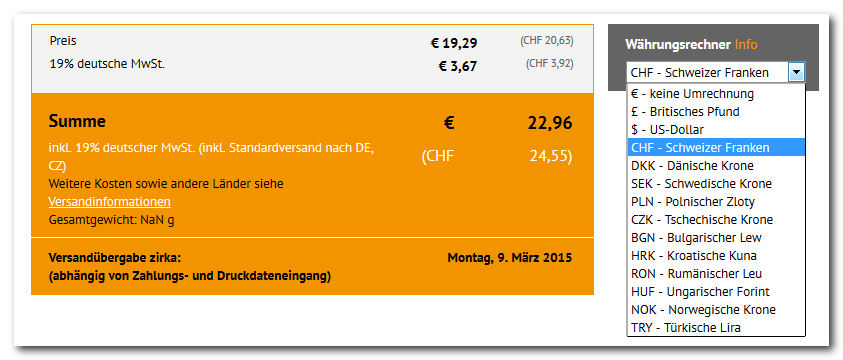
In addition to prices in the base currency, prices in other currencies can be displayed in the shop for the buyer’s information. To display prices in other currencies, WEBSALE V8s accesses a conversion table containing the most frequently required conversion rates. This table is always kept up to date daily. However, you can also use a shop-specific conversion table. The price display in an alternative currency serves only to inform your buyer. Invoicing in the shop continues to be done in the base currency. There are two ways to select the currency. You can offer your customer a drop-down list with various currencies from which they can choose their desired currency. After the selection, all relevant costs are additionally displayed informationally. Alternatively, you can determine the origin of your customer via GeoIP and display all relevant costs in the origin currency when the shop is called. With this type of display, it cannot be guaranteed that the applicable currency of the buyer is always determined, since GeoIP determination is not 100 percent accurate.Step 1: Activation
The alternative currency display must be activated for your shop by WEBSALE AG. Please contact your WEBSALE contact.Step 2: Settings in the shop configuration
In the<AlternativeCurrency> section of your shop configuration shop.config, you fundamentally define whether the display of an alternative currency is possible or not.
Via the GeoIP-Allow parameter, you can define whether the currency should be displayed automatically based on the origin of your customer.
With the <+Entry> subsections, you define the alternative currencies that are to be available for selection in your shop and that can be displayed. As with the base currency, you can have the alternative currency displayed both as text, for example US dollar, and as a symbol, for example $. Enter your desired values behind the Txt and Symbol parameters.
Example: The display of the alternative currency should not be controlled automatically via GeoIP determination. US dollar (USD) and British pound (GBP) should be offered as alternative currencies.
Step 3: Integrating the drop-down list
The drop-down list for the alternative currency can be integrated on the product detail view (ws_product.htm) and the cart page (ws_basket.htm).
Insert the tag WS-AltCurrencyList to display the drop-down list within the <form> of both templates.
The tag WS-AltCurrencyList automatically generates a <select> drop-down list. The class select_alternative_currency is assigned to this HTML element. Add this class to your styles file and assign your desired CSS properties.
The data from the <+Entry> subsections of the <AlternativeCurrency> section of the shop configuration shop.config is used as the <option> entries.
Step 4: Displaying the alternative currency
For displaying the alternative currency in the shop, you have two options: displaying it as a word, for example USD, or as a symbol, for example$.
Step 5: Displaying the alternative prices
In addition to the currency, of course, the converted price must also be displayed. To do so, it is necessary to integrate the special alternative price tags in the desired places. Which prices can be displayed as alternative prices can be found in the list of special tags for displaying prices in alternative currency. Example: Displaying the product price in the base currency and in the alternative currency.Step 6: Testing the display via GeoIP
To test the display of the alternative currency via GeoIP, you must open the shop directly from the desired IP address. So, if you want to test whether the alternative currency Swiss francs (CHF) is displayed correctly when a Swiss customer visits, you must open the shop from a Swiss IP address.A test using the GeoIP test mode is not possible. With this test mode, only the
WS-GeoIPCountryCode() wrappings for the country check can be tested, see guide Switching the shop’s test modes on and off.Currency formatting for automatically generated elements
Thanks to the free positioning of the tags for displaying the currency, you can decide for yourself whether the currency is displayed before or after the price. In addition, the tags give you the free choice of whether to display the currency as text or as a symbol. These statements generally apply to all price and currency displays of WEBSALE V8s. In exceptional cases, however, it may be that you cannot place the tags for both the currency and the price yourself on the template. In these cases, the shop generates these elements automatically. So that you still have the option to influence the positioning of the currency symbol, there is a setting option in your shop configurationshop.config. In the <PriceFormat> section, you can use the JoinCurrency and JoinCurrencySymbol parameters to define whether the currency is displayed before or after the price.
Example: The currency should always be displayed before the price.
Rounding logic for Switzerland (rappen rounding)
If you operate a shop in which the Swiss franc (CHF) applies as the currency, you can switch the rounding of the totals to the rounding logic commonly used in Switzerland. In this case, the total is multiplied by 20, then the result is commercially rounded to 0 decimal places and then divided by 20. This rounding logic is only applied to the total. All other prices, subtotals, discounts, and VAT amounts remain unaffected. For this purpose, add the parameterTotalSumSwissRounding-Allow in the shop configuration shop.config and assign it the value yes: