
In all cases, the FACT-Finder search function is a prerequisite.
Guide: Integration of FACT-Finder
The common structure
All three types are enclosed in the same way. The outer enclosure checks whether a campaign exists at all, the loop runs over all delivered campaigns, and inside it an enclosure decides on the type.Feedback campaigns on the hit list
With these, you highlight product groups, for example with a banner, and at the same time determine which products appear first. For this, “Campaign active on: Search result” must be selected in the FACT-Finder campaign manager. In “Pushed Products” mode, the selected products are placed before the result, mixed in, or replace it entirely. The code belongs in the result template specified afterFactFinderTemplate in the shop.config.
FACT-Finder only delivers the product index for each hit.
PR-AdvData() uses it to fetch the product data from the shop, and all the usual product tags are available within this enclosure.Feedback campaigns on product and basket
On the product detail view and in the basket there is no search that could trigger a campaign. Here, the shop must query the campaign from FACT-Finder separately, via an external include with the appropriate parameters.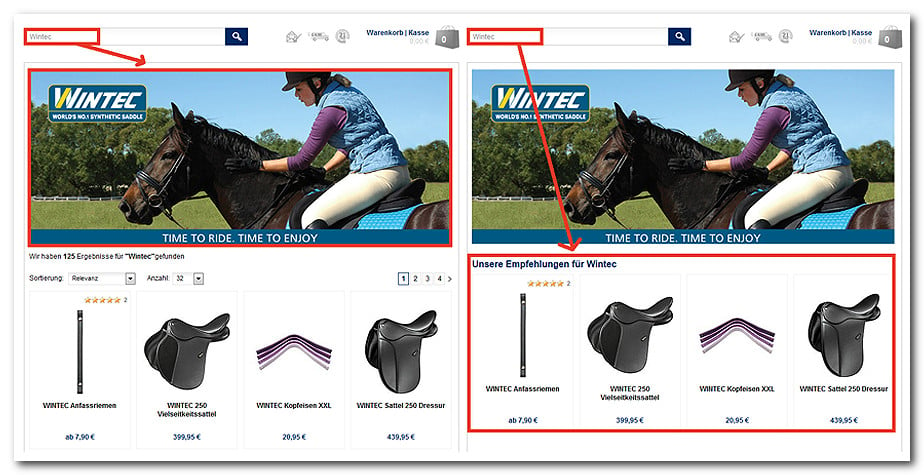
Step 1: Assign the campaign template
Step 2: Create the campaign template
It contains the same code as above, only without the surrounding form.Step 3: Query on the product detail view
Step 4: Query in the basket
Here the address must first be assembled, because a parameter has to be appended for each product in the basket.The detour via
PR-AdvData() is necessary because the basket holds the product index, but the campaign query expects the product number.Redirect campaigns
Certain search terms lead directly to a page of your shop. Anyone searching for “AGB” lands on the terms and conditions instead of an empty hit list. You define the target in FACT-Finder Management. The code belongs in the result template.~E-Search_CampaignTarget~ is available for the address and ~E-Search_CampaignTarget_Name~ for its label.
Advisor campaigns
Instead of a hit list, the customer is asked a question. Behind each answer lies a product selection, and answers can lead to further questions. The result is a question tree that replicates the advice of a specialist salesperson.Only the currently active question is ever returned. At the start, this is the first question of the tree. When the customer clicks an answer, the following question becomes the active one.
Finally: release
After integration in the shop, the campaigns still have to be released in the FACT-Finder campaign manager. Without this step, everything remains invisible without any recognizable error. Reference: Tags for the FACT-Finder integrationRelated topics
- Guide: Integration of FACT-Finder
- Guide: FACT-Finder: Filters, sorting and navigation
- Guide: Integrating external content