Documentation Index

Fetch the complete documentation index at: https://dokumentation.websale.de/llms.txt

Use this file to discover all available pages before exploring further.

Mithilfe dieser Funktion können Kunden Produkte per QR- oder Barcode aufrufen und in den Warenkorb legen. Ein Scanner-Icon im Suchfeld öffnet die Kamera im Vollbild-Modus. Wird eine URL gescannt, erfolgt einen direkte Weiterleitung. Wird hingegen ein Barcode gescannt, wird das Produkt mit der gescannten ID direkt in den Warenkorb gelegt.

Module

Folgende Module sind relevant für die Integration von Scan & Order:
  • $wsViews - aktuelle URL, Zielseiten, View-URLs

Frontend-Integration

Abhängigkeiten

Der Scanner basiert auf der Open-Source-Bibliothek html5-qrcode. Die Datei html5-qrcode.min.js wird im Verzeichnis scripts/ abgelegt und erst beim Öffnen des Scanners per Lazy-Load eingebunden.

QR-Button im Suchfeld

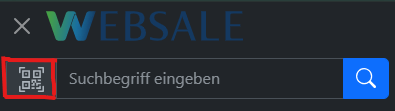
Der Button wird direkt vor dem Suchfeld innerhalb der Komponente ws-search-box platziert und öffnet den Scanner. Er erscheint, je nach Endgerät, an folgenden Stellen:
  • in der Desktop-Suchleiste des Headers
    Image
  • im mobilen Offcanvas-Navigationsmenü
    Image

Die Einbindung in den Header erfolgt über die Datei components/layout/header.htm:
<ws-search-box ...>
    <button type="button"
            class="btn btn-light border rounded-start"
            aria-label="%%QRCodeBtnTitle%%"
            data-bs-toggle="modal"
            data-bs-target="#wsQRCodeScanModal">
        <svg xmlns="http://www.w3.org/2000/svg" width="25" height="25" fill="currentColor" viewBox="0 0 16 16">
            <path d="M0 .5A.5.5 0 0 1 .5 0h3a.5.5 0 0 1 0 1H1v2.5a.5.5 0 0 1-1 0v-3Zm12 0a.5.5 0 0 1 .5-.5h3a.5.5 0 0 1 .5.5v3a.5.5 0 0 1-1 0V1h-2.5a.5.5 0 0 1-.5-.5ZM.5 12a.5.5 0 0 1 .5.5V15h2.5a.5.5 0 0 1 0 1h-3a.5.5 0 0 1-.5-.5v-3a.5.5 0 0 1 .5-.5Zm15 0a.5.5 0 0 1 .5.5v3a.5.5 0 0 1-.5.5h-3a.5.5 0 0 1 0-1H15v-2.5a.5.5 0 0 1 .5-.5ZM4 4h1v1H4V4Z"/>
            <path d="M7 2H2v5h5V2ZM3 3h3v3H3V3Zm2 8H4v1h1v-1Z"/>
            <path d="M7 9H2v5h5V9Zm-4 1h3v3H3v-3Zm8-6h1v1h-1V4Z"/>
            <path d="M9 2h5v5H9V2Zm1 1v3h3V3h-3ZM8 8v2h1v1H8v1h2v-2h1v2h1v-1h2v-1h-3V8H8Zm2 2H9V9h1v1Zm4 2h-1v1h-2v1h3v-2Zm-4 2v-1H8v1h2Z"/>
            <path d="M12 9h2V8h-2v1Z"/>
        </svg>
    </button>
    <input type="search" name="query" ...>
    ...
</ws-search-box>
Der Button muss sowohl im Desktop-Header als auch im mobilen Offcanvas-Menü identisch platziert werden. Mithilfe des Attributs aria-label=%QRCodeBtnTitle% werden die Shop-Textbausteine für die Barrierefreiheit benutzt.
Das Vollbild-Modal wird einmalig im Basis-Layout eingefügt. Der Bereich #wsQRScanner ist dafür zuständig, dass die Kameravorschau von HTML5-QR-Code angezeigt wird. Die Einbindung erfolgt über die Datei layouts/default.htm :
<div id="wsQRCodeScanModal" class="modal" tabindex="-1">
    <div class="modal-dialog modal-fullscreen">
        <div class="modal-content">
            <div class="modal-header">
                <p class="h5 modal-title">
                    <svg xmlns="http://www.w3.org/2000/svg" width="35" height="35" fill="currentColor"
                         class="me-2 align-top" viewBox="0 0 16 16">
                        <path d="M0 .5A.5.5 0 0 1 .5 0h3a.5.5 0 0 1 0 1H1v2.5a.5.5 0 0 1-1 0v-3Zm12 0a.5.5 0 0 1 .5-.5h3a.5.5 0 0 1 .5.5v3a.5.5 0 0 1-1 0V1h-2.5a.5.5 0 0 1-.5-.5ZM.5 12a.5.5 0 0 1 .5.5V15h2.5a.5.5 0 0 1 0 1h-3a.5.5 0 0 1-.5-.5v-3a.5.5 0 0 1 .5-.5Zm15 0a.5.5 0 0 1 .5.5v3a.5.5 0 0 1-.5.5h-3a.5.5 0 0 1 0-1H15v-2.5a.5.5 0 0 1 .5-.5ZM4 4h1v1H4V4Z"/>
                        <path d="M7 2H2v5h5V2ZM3 3h3v3H3V3Zm2 8H4v1h1v-1Z"/>
                        <path d="M7 9H2v5h5V9Zm-4 1h3v3H3v-3Zm8-6h1v1h-1V4Z"/>
                        <path d="M9 2h5v5H9V2Zm1 1v3h3V3h-3ZM8 8v2h1v1H8v1h2v-2h1v2h1v-1h2v-1h-3V8H8Zm2 2H9V9h1v1Zm4 2h-1v1h-2v1h3v-2Zm-4 2v-1H8v1h2Z"/>
                        <path d="M12 9h2V8h-2v1Z"/>
                    </svg>
                    %%QrScan%%
                </p>
                <button type="button" class="btn-close" data-bs-dismiss="modal" aria-label="%%Close%%"></button>
            </div>
            <div class="modal-body position-relative">
                <div id="wsQRScanner" class="h-100"></div>
            </div>
        </div>
    </div>
</div>

JavaScript-Konstante

Der Pfad zur Bibliothek wird im {{ autoescape "js" }} -Block der Layout-Datei layouts/default.htm als JavaScript-Variable gesetzt.
{{ autoescape "js" }}
    {{ var $cAddToBasketTarget = $wsViews.viewUrl("basket.htm") }}
    {{ var $cAddToBasketParams = { wscsrf: $wsActions.csrfToken, quantity: 1 } }}
    {{ var $cAddToBasketLink = $wsActions.url("BasketItemAdd", $cAddToBasketTarget, $cAddToBasketParams) }}
    <script>
        const wsQRCodeJS = "{{= static('scripts/html5-qrcode.min.js') }}";
        const wsAddToBasketLink = "{{= $cAddToBasketLink }}";
    </script>
{{ /autoescape }}

Scanner-Logik

Der folgende Code-Block ist in die Datei scripts/wsGlobal.js einzufügen. Der Ablauf ist wie folgt:
  1. Beim ersten Öffnen des Scanners wird html5-qrcode.min.js nachgeladen.
  2. War die Bibliothek bereits geladen, wird der Scanner direkt über wsInitQRScan() gestartet.
  3. html5-qrcode startet die Kamera und zeigt die Vorschau im #wsQRScanner -Bereich an.
  4. Nach erfolgreichem Scan leiten URL-Codes direkt zur gescannten URL weiter - Barcodes legen das Produkt mit der gescannten ID direkt in den Warenkorb.
  5. Beim Schließen des Fensters wird die Kamera gestoppt.
// ---------------------------------------------------------- QR code scanner - start
// const html5QrCode and function wsInitQRScan is in script html5-qrcode.min.js

function wsInitQRScan() {
    Html5Qrcode.getCameras().then(devices => {
        if (devices && devices.length) {
            // use this to start scanning
            html5QrCode.start(
                {
                    facingMode: "environment"
                },
                {
                    fps: 10,
                    qrbox: { width: 250, height: 250 }
                },
                (decodedText, decodedResult) => {
                    // do something when code is read
                    html5QrCode.stop().then((ignore) => {
                        // QR Code scanning is stopped
                        if (decodedText.startsWith("http")) {
                            // execute QR code if code is a URL
                            location.href = decodedText;
                        } else {
                            // execute WEBSALE search if Barcode
                            location.href = wsAddToBasketLink + "&productId=" + decodedText;
                        }
                    }).catch((err) => {
                        // Stop failed, handle it
                    });
                },
                (errorMessage) => {
                    // parse error, ignore it
                })
                .catch((err) => {
                    // Start failed, handle it
                }
            );
        }
    }).catch(err => {
        // access denied
    });
}

document.querySelector("#wsQRCodeScanModal").addEventListener("show.bs.modal", function(e) {
    var wsQRCodeScanScript = document.querySelector("#wsQRCodeScanScript");
    if (!wsQRCodeScanScript) {
        // lazyload script for better performance
        var script = document.createElement("script");
        script.setAttribute("id", "wsQRCodeScanScript");
        script.setAttribute("src", wsQRCodeJS);
        document.head.appendChild(script);
    } else {
        // execute function if script is already loaded
        wsInitQRScan();
    }
});

document.querySelector("#wsQRCodeScanModal").addEventListener("hidden.bs.modal", function(e) {
    html5QrCode.stop().then((ignore) => {
        // QR Code scanning is stopped
    }).catch((err) => {
        // Stop failed, handle it
    });
});

// ---------------------------------------------------------- QR code scanner - end