
The basic principle
1
Define variant properties shop-wide
First, you define once which characteristics exist in the shop at all and which values they can take. For example, you can define the property “Size” with the options “36”, “38”, and “40”, or the property “Color” with the options “Green”, “Blue”, and “Red”. This definition applies shop-wide and is thus available to all products. It describes what may exist - not what an individual product actually has.This definition applies shop-wide and is thus available to all products. It describes what may exist – not what an individual product actually has.
2
Specify at the product which properties it uses
At a product, you determine which properties apply to this product (for example size and color) and which options of these properties come into question for it.
3
Generate the combinations
The actual variants arise from the selected options. There are two ways to do this:
- generate an automatic combination of the selected options, or
- deliberately and manually put together individual combinations.
Maintaining variant properties shop-wide
You reach the list of all variant properties from a product’s variant list via the ”⋮ menu” at the top right and the entry “Manage variant properties”.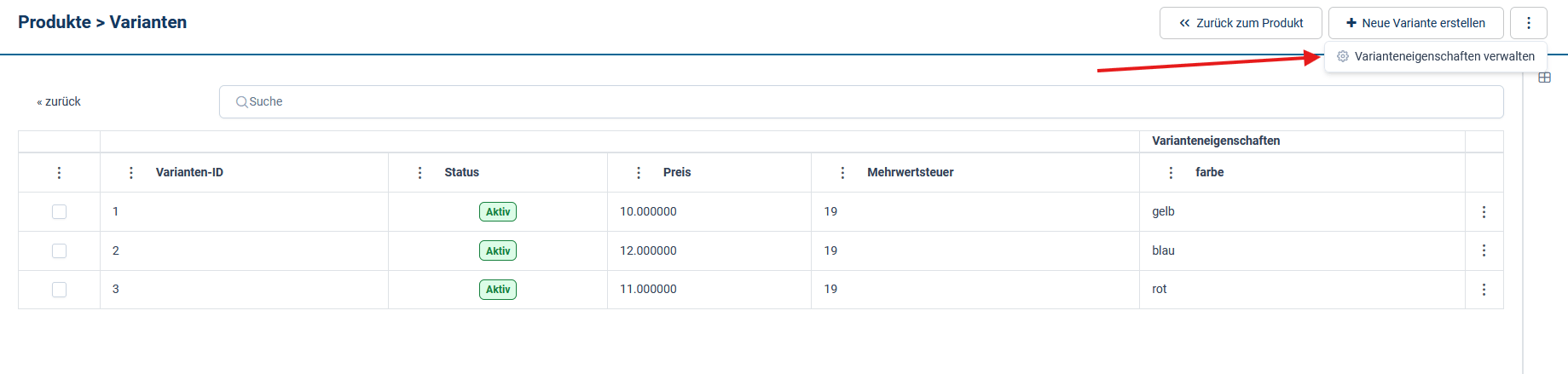
Screenshot as of 24.08.2026
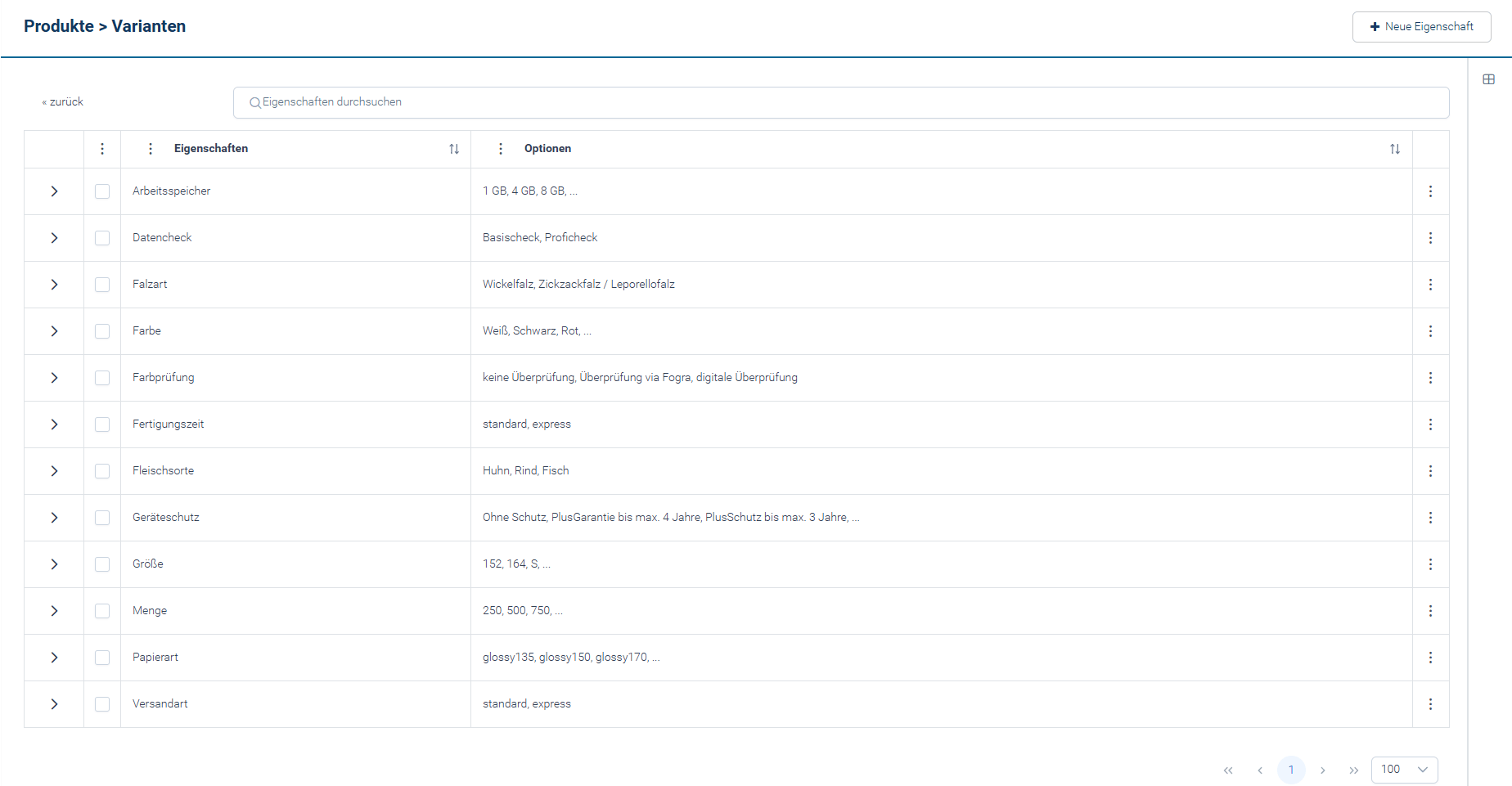
Screenshot as of 24.08.2026
Creating a property
When creating a property, you enter its name and at least one option. Both the name and the option value may be up to 128 characters long. The name is taken over unchanged, meaning upper and lower case as well as spaces are preserved. Properties are completely independent of each other. You can therefore easily run several size properties in parallel, such assize-shoes, size-tops, and size-womens-shirts. There is no limit to the number of properties or options.
Editing a property
In the edit dialog, the name of the property and its options can be changed.- Under “General settings” is the “Name of the property”. It is a required field.
- Under “Options” are the options. Via ”+ Add option” another one is added; the ”⋮ menu” of a row edits or removes it.
- The Order column carries the drag & drop handle per row. Use it to sort the options.
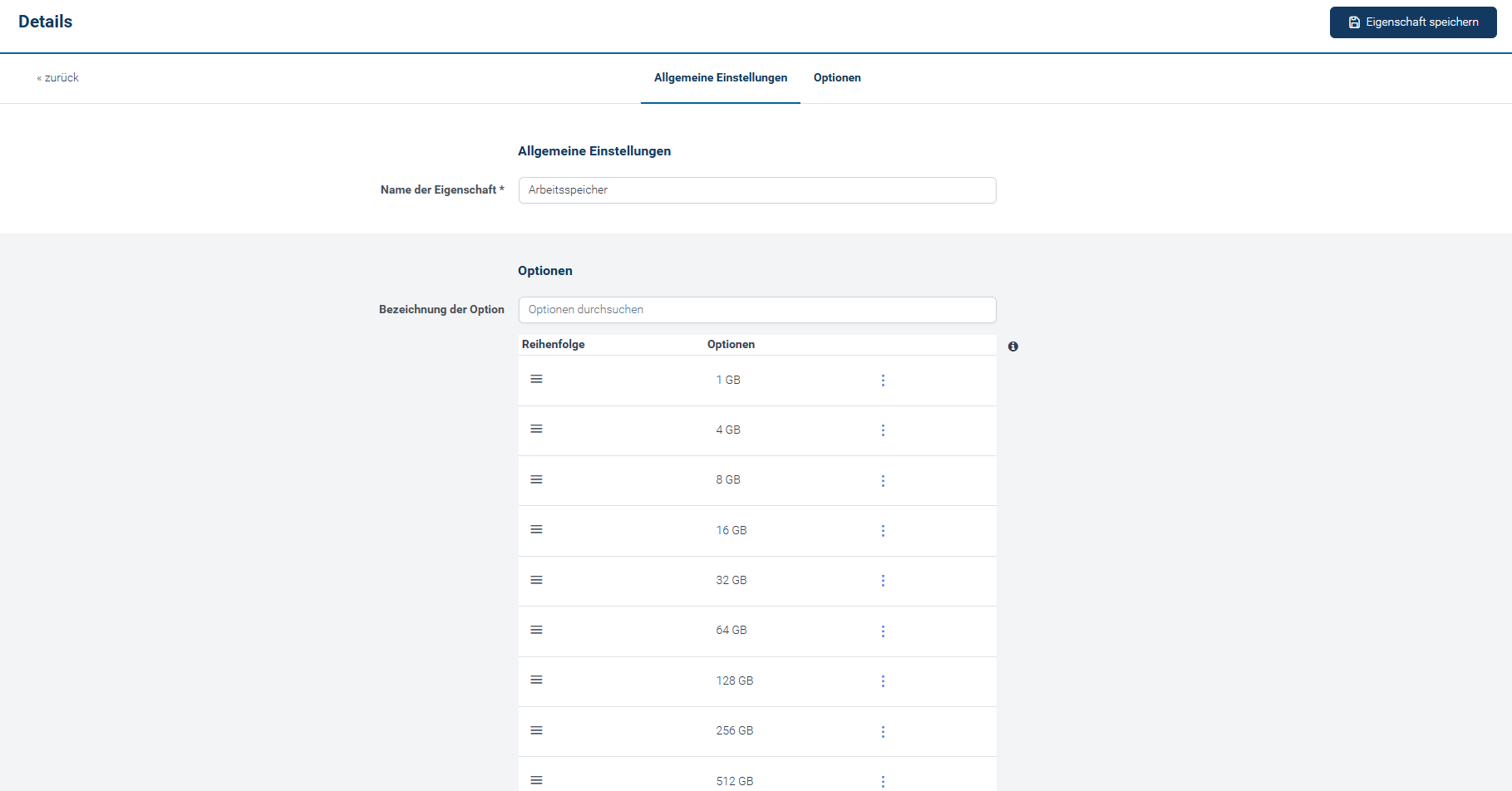
Screenshot as of 24.08.2026
The order of options
New options are initially displayed in the order in which they were created. With sizes, this quickly leads to a selection likexl, 3xl, s, m, l, 2xl. Technically correct, but often unusable in the shop. Via drag & drop, this becomes the expected sequence s, m, l, xl, 2xl, 3xl, for example.
The order defined here applies shop-wide for this property. The options are offered for selection in the shop’s frontend in this order.
Deleting properties and options
When a property is deleted, its options are removed as well. To merely take an option out of sale, deleting is not the right way. You can find out how to do that under Removing variants from the shop.Assigning variants to a product
At the product, you select from the shop-wide properties the options that come into question for this product. Then there are two ways to arrive at the desired combinations:- Automatically: All possible combinations of the options of the selected properties are generated. This is the fastest way if the product actually exists in all available combinations.
- Manually: Put together the combinations individually by selecting and adding a value for each property. Repeat the process for all properties. Confirm the selection at the end via “Create variants”. This way is suitable if only certain combinations exist, for example the shirt in
blueonly in sizesmandl, but inwhitein all sizes.
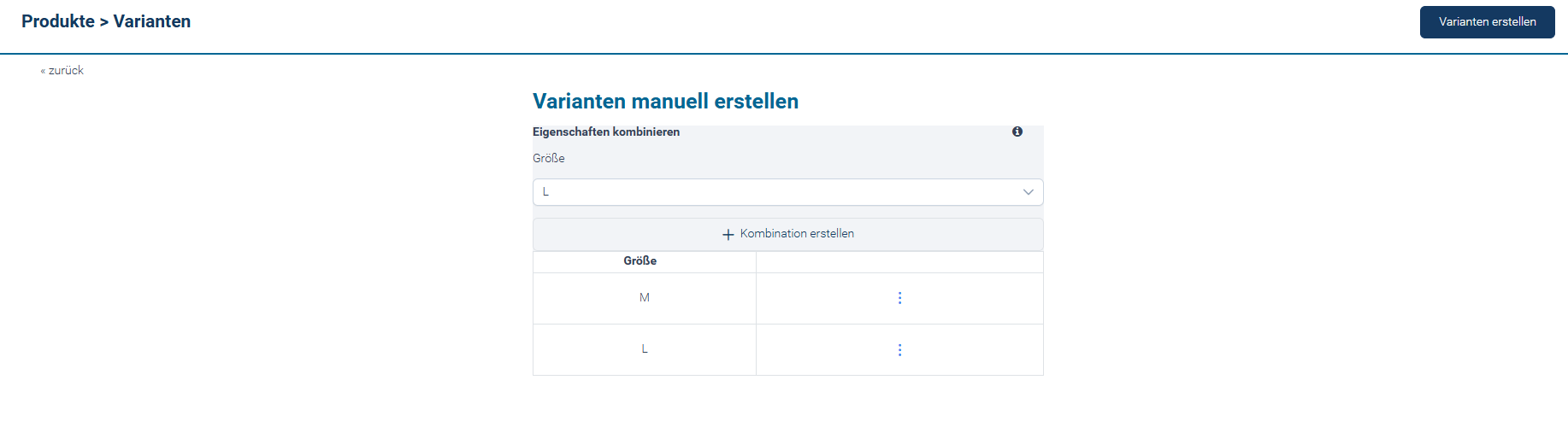
Adding properties later
Whether adding properties later is harmless or destructive depends on what you add:- Additional options of an already used property, such as adding another color to a product that already has colors, is uncritical. The new combinations are added, the existing variants are preserved.
- An additional property, such as
size, added to a product that previously only had the propertycolor, changes the structure of the product.
Options always apply shop-wide
An option value that only occurs at a single product cannot be created at the product itself. If you neednavy blue for a shirt, for example, create the option in the property color - it is then available to all products. Only the selection of options is product-specific, not the value itself.
What may differ per variant
A variant is not a standalone product; it initially inherits all properties of the main product. Only the fields you additionally set at the variant deviate. All others correspond to the main product. So if you set the price of a variant, that price applies. If you leave the price empty in the variant, the price of the main product applies. This allows you, for example, to model the case where sizes in the color navy blue is cheaper than size m in the color yellow: you enter the deviating price at the respective variant.
Which fields may deviate per variant at all is configured per product data field. Only fields with this designation appear in a variant’s form. By default, the fields name, article number, description, price, tax rate, and status, among others, are variant-capable, while the timestamps are not. Custom product data fields can also be enabled this way - see content – Catalog (categories & products).
The stock level, by contrast, follows its own logic. Each variant has its own stock, which is independent of the main product. When a variant is deleted, its stock is deleted as well.
Removing variants from the shop
If a variant is sold out or should no longer appear in the shop for other reasons, there are two options:- Change the status: Each variant carries a “Status” field. In the list, it is displayed as a badge, with “Active” marked green and “Inactive” red. An inactive variant is not displayed in the shop. The advantage of this approach is that the variant is preserved with all its values and can be reactivated later.
- Delete the variant: A variant can be deleted via the ”⋮ menu” at the end of the row. The following applies: options that are no longer used by any variant of the product afterwards also disappear from the properties of this product. The variant’s stock is deleted as well. The properties themselves remain set at the product, even if you delete the last variant.
Display in the shop
How the variants appear in the shop is determined by the template. There are no settings for this in the Admin Interface. Keep the following points in mind:- The name of the property is the one you entered. There is no separate field for a deviating display name. If the shop should say
Shoeseven though the property is namedsize-shoes, the template must make this mapping, for example via a text snippet. - The presentation form, such as a select list, radio buttons, links, or color swatches, is also a matter of the template. There is no field to define this per property.
$wsProducts – Product data.
Guide
- API reference products – endpoints for variant attributes and product variants.
$wsProducts– Product data – output of the variants in the template.- content – Catalog (categories & products) – product data fields and their variant capability.
- Text snippets – maintenance of the texts the shop displays.