> ## Documentation Index
> Fetch the complete documentation index at: https://dokumentation.websale.de/llms.txt
> Use this file to discover all available pages before exploring further.
# Enabling and disabling shop test modes
> How to put the live shop into a test mode via URL parameters, which individual test modes exist, and how the general test mode closes the shop completely.
WEBSALE V8s offers the option to work on a shop in test mode — for example, to test new products, categories, and areas on the templates without impacting productive operations. Your changes are not visible or reachable for the buyer.
Within the active test mode, design adjustments and specific shop functions can be tested separately. It is also possible to combine multiple tests. Individual tests can be added or turned off specifically.
For your extensive tests with WEBSALE V8s, unlike other shop systems, no special test system needs to be set up. Your live shop can easily be put into a test mode, for example to test the successful integration of new features before their release. This way you always work with the current product and customer data. There is no need to mirror data into a test system.
All test modes are password-protected so that third parties or search engines cannot see this content.
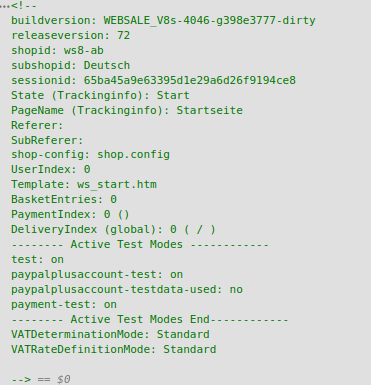
If the shop is called in test mode, an information area appears in the source code of the page. This provides information about the activated individual test modes, for example:
 In the following you will learn
1. how to put a shop into the general test mode and select additional individual test modes in order to preview specific content during ongoing operations,
2. how the individual test mode differs from the general test mode that makes the shop completely inaccessible to third parties, so that redesigns or larger tests and changes can be previewed,
3. how to include an alternative shop configuration `shop.config` for a session.
## Setting a test mode password (prerequisite)
To open a shop in test mode, a test mode password must be set in the shop configuration `shop.config`. Without this password, the shop cannot be opened in test mode. Viewing a shop in one of the test modes is only possible after the password has been entered successfully. Before a password is set, the default password is `on`.
A test mode password can be defined for each subshop in the `` section of the shop configuration `shop.config`.
```ini theme={"theme":{"light":"github-light","dark":"github-dark"},"languages":{"custom":["/languages/websale.json"]}}
...
TestModePassword = # password
...
```
* After three incorrect password entries, it is no longer possible to activate a test mode for a period of 10 minutes. This serves as protection against hackers.
* Cookies must be enabled in your browser to use the test modes.
* Orders placed during test operation are automatically flagged in the online service area ("ignored for revenue statistics").
* In the test modes, products and categories that were declared "inactive" in the WSPManager or in the ERP system are also displayed.
## Activate and deactivate test mode
You can enable the general single test operation for your current session by appending the parameter `?test=on` to any shop call. A page opens with the input field for the password. After entering it correctly, the browser displays the originally called page; the shop is then in test mode.
Activate test mode:
```text theme={"theme":{"light":"github-light","dark":"github-dark"},"languages":{"custom":["/languages/websale.json"]}}
https://www.xyz.de/?test=on
```
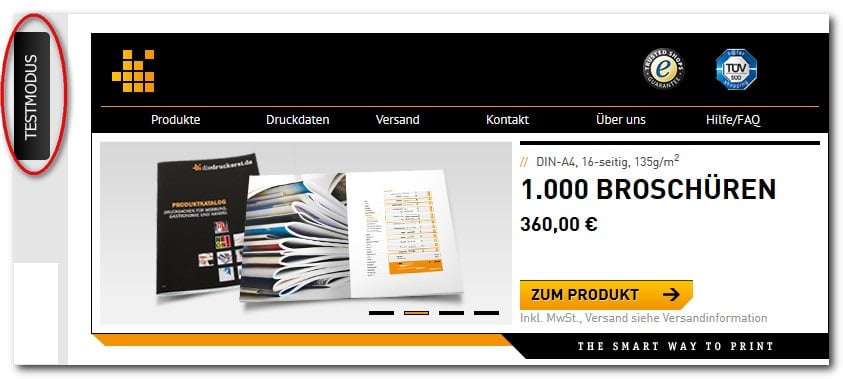
Using the `ST-TestMode` bracket, you can output whether the shop is currently in test mode:
```html theme={"theme":{"light":"github-light","dark":"github-dark"},"languages":{"custom":["/languages/websale.json"]}}
...
{ST-TestMode}
Test mode
{/ST-TestMode}
...
```
In the following you will learn
1. how to put a shop into the general test mode and select additional individual test modes in order to preview specific content during ongoing operations,
2. how the individual test mode differs from the general test mode that makes the shop completely inaccessible to third parties, so that redesigns or larger tests and changes can be previewed,
3. how to include an alternative shop configuration `shop.config` for a session.
## Setting a test mode password (prerequisite)
To open a shop in test mode, a test mode password must be set in the shop configuration `shop.config`. Without this password, the shop cannot be opened in test mode. Viewing a shop in one of the test modes is only possible after the password has been entered successfully. Before a password is set, the default password is `on`.
A test mode password can be defined for each subshop in the `` section of the shop configuration `shop.config`.
```ini theme={"theme":{"light":"github-light","dark":"github-dark"},"languages":{"custom":["/languages/websale.json"]}}
...
TestModePassword = # password
...
```
* After three incorrect password entries, it is no longer possible to activate a test mode for a period of 10 minutes. This serves as protection against hackers.
* Cookies must be enabled in your browser to use the test modes.
* Orders placed during test operation are automatically flagged in the online service area ("ignored for revenue statistics").
* In the test modes, products and categories that were declared "inactive" in the WSPManager or in the ERP system are also displayed.
## Activate and deactivate test mode
You can enable the general single test operation for your current session by appending the parameter `?test=on` to any shop call. A page opens with the input field for the password. After entering it correctly, the browser displays the originally called page; the shop is then in test mode.
Activate test mode:
```text theme={"theme":{"light":"github-light","dark":"github-dark"},"languages":{"custom":["/languages/websale.json"]}}
https://www.xyz.de/?test=on
```
Using the `ST-TestMode` bracket, you can output whether the shop is currently in test mode:
```html theme={"theme":{"light":"github-light","dark":"github-dark"},"languages":{"custom":["/languages/websale.json"]}}
...
{ST-TestMode}
Test mode
{/ST-TestMode}
...
```
 Reference: ST-TestMode
You can switch test operation off again by appending the URL parameter `?test=off` to any shop call.
```text theme={"theme":{"light":"github-light","dark":"github-dark"},"languages":{"custom":["/languages/websale.json"]}}
https://www.xyz.de/?test=off
```
## Select individual test mode
Within the active general test mode, design adjustments and specific shop functions can be tested separately. It is also possible to combine multiple tests. Individual tests can be added or turned off specifically.
To test special shop functions within the activated test mode, the following specific test modes are available.
### Design test mode
The design test mode is suited to specifically testing changes on the templates, for example adding banners.
These changes can be added to the template using the `ST-DesignTest` bracket.
Example:
```html theme={"theme":{"light":"github-light","dark":"github-dark"},"languages":{"custom":["/languages/websale.json"]}}
{ST-DesignTest}
New banner
{/ST-DesignTest}
```
By activating the design test mode, the design test brackets are shown. To do this, in addition to `?test=on`, append the parameter `&design-test=on` to any shop call.
Activate the design test mode:
```text theme={"theme":{"light":"github-light","dark":"github-dark"},"languages":{"custom":["/languages/websale.json"]}}
https://www.xyz.de/?test=on&design-test=on
```
Deactivate the design test mode:
```text theme={"theme":{"light":"github-light","dark":"github-dark"},"languages":{"custom":["/languages/websale.json"]}}
https://www.xyz.de/?test=on&design-test=off
```
Reference: ST-DesignTest
### Campaign test mode
With campaigns, time-limited actions can be realized, for example special offers or free shipping. This test mode allows you to check the campaign settings in the shop configuration `shop.config` and the brackets set on the template.
Activate the campaign test mode:
```text theme={"theme":{"light":"github-light","dark":"github-dark"},"languages":{"custom":["/languages/websale.json"]}}
https://www.xyz.de/?test=on&campaign-test=on
```
Deactivate the campaign test mode:
```text theme={"theme":{"light":"github-light","dark":"github-dark"},"languages":{"custom":["/languages/websale.json"]}}
https://www.xyz.de/?test=on&campaign-test=off
```
Guide: Campaign control
### Event test mode
Event brackets let you control when certain areas on a template should be displayed or not. You can test these brackets with a special test call.
Suppose you have integrated the following event bracket on your templates:
```html theme={"theme":{"light":"github-light","dark":"github-dark"},"languages":{"custom":["/languages/websale.json"]}}
{WS-Event(2010-08-23-13:00,2010-09-29-22:30)}
...
{/WS-Event(2010-08-23-13:00,2010-09-29-22:30)}
```
Then the event test mode is called as follows:
```text theme={"theme":{"light":"github-light","dark":"github-dark"},"languages":{"custom":["/languages/websale.json"]}}
https://www.xyz.de/?test=on&event-test=2010-08-23-13:00
```
To activate, append the URL parameter `&event-test=` to any shop call; the shop must be in general test mode.
Activate the event test mode:
```text theme={"theme":{"light":"github-light","dark":"github-dark"},"languages":{"custom":["/languages/websale.json"]}}
https://www.xyz.de/?test=on&event-test=
```
Deactivate the event test mode:
```text theme={"theme":{"light":"github-light","dark":"github-dark"},"languages":{"custom":["/languages/websale.json"]}}
https://www.xyz.de/?test=on&event-test=off
```
Reference: WS-Event()
In the special case where the end time of one event and the start time of another event coincide, both event brackets are rendered in the event test mode when called with the corresponding timestamp. However, this only affects the test mode and does not apply in regular shop operations. There, the expired event bracket is immediately replaced by the starting event bracket.
### Web2Print test mode
If the Web2Print feature is integrated in a shop, it can be tested with this mode.
To activate, append the parameter `&w2p-test=on` to any shop call; the shop must be in general test mode.
Activate the Web2Print test mode:
```text theme={"theme":{"light":"github-light","dark":"github-dark"},"languages":{"custom":["/languages/websale.json"]}}
https://www.xyz.de/?test=on&w2p-test=on
```
Deactivate the Web2Print test mode:
```text theme={"theme":{"light":"github-light","dark":"github-dark"},"languages":{"custom":["/languages/websale.json"]}}
https://www.xyz.de/?test=on&w2p-test=off
```
Guide: Web-to-print products
### A/B test test mode
With the A/B test module, the conversion rate of different versions of a shop page can be compared.
To check the test cases of the A/B test module, this test mode is available. To activate, append the parameters `&ab-test-id=` and `&ab-test-case=` to any shop call; the shop must be in test mode.
Replace `` with the name of the test and `` with the letter of the respective test case.
Activate the A/B test test mode:
```text theme={"theme":{"light":"github-light","dark":"github-dark"},"languages":{"custom":["/languages/websale.json"]}}
https://www.xyz.de/?test=on&ab-test-id=&ab-test-case=
```
Deactivate the A/B test test mode:
```text theme={"theme":{"light":"github-light","dark":"github-dark"},"languages":{"custom":["/languages/websale.json"]}}
https://www.xyz.de/?test=on&ab-test-id=off
```
Guide: A/B test
In the template, the `ABTest-active(Test-ID)` tag can be used to display an area when the A/B test is active:
```html theme={"theme":{"light":"github-light","dark":"github-dark"},"languages":{"custom":["/languages/websale.json"]}}
{ABTest-active(Test-ID)}
This area is displayed when the A/B test is active
{/ABTest-active(Test-ID)}
{!ABTest-Active(Test-ID)}
This area is displayed when the A/B test is not active
{/!ABTest-Active(Test-ID)}
```
Reference: ABTest-active()
### GeoIP test mode
With GeoIP brackets, you can display targeted information to customers from certain countries when they visit your shop. The `WS-GeoIPCountryCode()` bracket is available for this.
Reference: WS-GeoIPCountryCode()
To activate, append the parameter `&geoip-test=<3-digit ISO code of the country>` to any shop call; the shop must be in test mode. The parameter `&geoip-test=clear` resets the GeoIP test country code. To exit, append the parameter `&geoip-test=off`; the GeoIP is then determined again based on the IP.
Activate the GeoIP test mode:
```text theme={"theme":{"light":"github-light","dark":"github-dark"},"languages":{"custom":["/languages/websale.json"]}}
https://www.xyz.de/?test=on&geoip-test=<3-digit ISO code of the country>
```
Reset the GeoIP test mode:
```text theme={"theme":{"light":"github-light","dark":"github-dark"},"languages":{"custom":["/languages/websale.json"]}}
https://www.xyz.de/?test=on&geoip-test=clear
```
Deactivate the GeoIP test mode:
```text theme={"theme":{"light":"github-light","dark":"github-dark"},"languages":{"custom":["/languages/websale.json"]}}
https://www.xyz.de/?test=on&geoip-test=off
```
A test of the correct display of the alternative currency display based on the GeoIP is not possible with this test mode.
Guide: Alternative currency
### SSL-only test mode
The SSL-only mode, in which all pages of the shop are transmitted encrypted, can be tested with this mode.
Activate the SSL-only test mode:
```text theme={"theme":{"light":"github-light","dark":"github-dark"},"languages":{"custom":["/languages/websale.json"]}}
https://www.xyz.de/?test=on&sslonly-test=on
```
Deactivate the SSL-only test mode:
```text theme={"theme":{"light":"github-light","dark":"github-dark"},"languages":{"custom":["/languages/websale.json"]}}
https://www.xyz.de/?test=on&sslonly-test=off
```
Guide: Encryption of all shop pages (SSL-only mode)
### Link optimization test mode
To test link optimization, first set the `Allow` parameter to the value `test` in the `TopRank` section of the shop configuration `shop.config`.
Activate the link optimization test mode:
```text theme={"theme":{"light":"github-light","dark":"github-dark"},"languages":{"custom":["/languages/websale.json"]}}
https://www.xyz.de/?test=on&linkoptimization-test=on
```
Deactivate the link optimization test mode:
```text theme={"theme":{"light":"github-light","dark":"github-dark"},"languages":{"custom":["/languages/websale.json"]}}
https://www.xyz.de/?test=on&linkoptimization-test=off
```
Guide: URL and link optimization
### Test mode for JavaScript and CSS minification
In conjunction with the WEBSALE V8s PageSpeed tool, two different test calls are available — one for choosing between minified and non-minified files, and one for direct access to the uploaded files.
#### Test mode for using the minified or non-minified JavaScript and CSS files
If you are already using minified files in your shop, you can use the call `&jscssminified-test=off` to determine that the shop should access the non-minified files in the `css_min` and `js_min` folders. These files are provided by the PageSpeed tool at the same time as the minified files. This mode is helpful in order to more easily find and fix any errors.
Example:
```text theme={"theme":{"light":"github-light","dark":"github-dark"},"languages":{"custom":["/languages/websale.json"]}}
https://www.xyz.de/?test=on&jscssminified-test=off
```
To access the minified files again in test mode, call the shop with the parameter `jscssminified-test=on`.
Example:
```text theme={"theme":{"light":"github-light","dark":"github-dark"},"languages":{"custom":["/languages/websale.json"]}}
https://www.xyz.de/?test=on&jscssminified-test=on
```
#### Direct access to the uploaded JavaScript and CSS files
When CSS and JavaScript files are included via the PageSpeed tool, a change only becomes visible after publishing the files. Under certain circumstances, this can be very obstructive during daily work. For this reason, you have the option of embedding CSS and JavaScript files directly and then testing them in the shop via a special direct-access link.
To activate this direct-access mode, append the parameter `&jscssdirect-test=on` to any shop call.
Activate the test mode:
```text theme={"theme":{"light":"github-light","dark":"github-dark"},"languages":{"custom":["/languages/websale.json"]}}
https://www.xyz.de/?test=on&jscssdirect-test=on
```
Deactivate the test mode:
```text theme={"theme":{"light":"github-light","dark":"github-dark"},"languages":{"custom":["/languages/websale.json"]}}
https://www.xyz.de/?test=on&jscssdirect-test=off
```
In the template, the `ST-DirectJSCSSTest` tag can be used to display an area when the test with direct call is active:
```html theme={"theme":{"light":"github-light","dark":"github-dark"},"languages":{"custom":["/languages/websale.json"]}}
{ST-DirectJSCSSTest}
Direct access active
{/ST-DirectJSCSSTest}
{!ST-DirectJSCSSTest}
Direct access inactive
{/!ST-DirectJSCSSTest}
```
Reference: ST-DirectJSCSSTest
For detailed information on embedding CSS and JavaScript files with direct access, see:
Guide: CSS
Guide: JavaScript and jQuery
Guide: Debug mode for faster troubleshooting in the browser (CSS)
Guide: Debug mode for faster troubleshooting in the browser (JavaScript and jQuery)
### Payment method test mode
WEBSALE provides a payment method test mode. You can use it, for example, if you want to integrate and test a new payment method in your shop without affecting the ongoing productive operation of the shop.
In the template, the `ST-PaymentTest` tag can be used to display an area when the shop has been called in the payment method test mode:
```html theme={"theme":{"light":"github-light","dark":"github-dark"},"languages":{"custom":["/languages/websale.json"]}}
{ST-PaymentTest}
Payment method test mode on
{/ST-PaymentTest}
```
Reference: ST-PaymentTest
#### Setting up the payment method test mode for the desired payment method
In the `` section of the respective payment method in the shop configuration `shop.config`, add the `TestMode` parameter and set it to `yes`:
```ini theme={"theme":{"light":"github-light","dark":"github-dark"},"languages":{"custom":["/languages/websale.json"]}}
...
TestMode = yes
...
```
The section of this payment method is now used exclusively for test mode, not for productive shop operation.
#### Calling the shop in the payment method test mode
To activate the payment method test mode, append the parameter `&payment-test=on` to any shop call; the shop must already be in the general test mode.
```text theme={"theme":{"light":"github-light","dark":"github-dark"},"languages":{"custom":["/languages/websale.json"]}}
https://www.xyz.de/?test=on&payment-test=on
```
To deactivate, append the parameter `&payment-test=off` to any shop call.
```text theme={"theme":{"light":"github-light","dark":"github-dark"},"languages":{"custom":["/languages/websale.json"]}}
https://www.xyz.de/?test=on&payment-test=off
```
#### Removing the payment method test mode for the desired payment method
After the test has been successfully completed, the payment method is to be actively used and offered in the shop. To do this, in the `` section of the respective payment method in the shop configuration `shop.config`, set the `TestMode` parameter to `no`:
```ini theme={"theme":{"light":"github-light","dark":"github-dark"},"languages":{"custom":["/languages/websale.json"]}}
...
TestMode = no
...
```
The section of this payment method is now used for productive shop operation.
Reference: PaymentXXX-Txt section
Guide: Setting up payment methods
#### Test modes for individual payment methods
The following payment methods have their own test mode in addition to the general payment method test mode.
For all of them, to activate the test mode the `TestMode` parameter in the shop configuration `shop.config` must be set to `yes` in the respective `` section. To call the shop in the respective test mode, a third URL parameter is appended to any shop call, in addition to the general test mode `?test=on` and the general payment method test mode `&payment-test=on`:
```text theme={"theme":{"light":"github-light","dark":"github-dark"},"languages":{"custom":["/languages/websale.json"]}}
https://www.xyz.de/?test=on&payment-test=on&=on
```
To end the test mode, the `TestMode` parameter is set back to `no` and the URL parameters to `off`.
| Payment method | Third URL parameter | Further reading |
| ----------------------------------------------------------------------- | ----------------------------- | -------------------------------------------------------------------------------- |
| PayPal (direct integration) | `paypalaccount-test` | Guide: PayPal |
| PayPal PLUS | `paypalplusaccount-test` | Guide: PayPal PLUS |
| PayPal (PayPal Checkout integration) | `paypalcheckout-test` | Guide: PayPal Checkout, paying with a PayPal account |
| PayPal purchase on invoice (Ratepay) | `invoiceaccount-test` | Guide: PayPal Checkout, purchase on invoice with Ratepay |
| PayPal Pay Later | `paypalcheckoutpaylater-test` | Guide: PayPal Checkout, Pay Later |
| Direct debit | `debitaccount-test` | Guide: Direct debit payment method, Paymorrow, direct debit with PayPal Checkout |
| Credit card payment | `creditcardclearing-test` | Guide: Credit card payment method |
| Apple Pay | `applepayclearing-test` | Guide: Apple Pay |
| Google Pay | `googlepayclearing-test` | Guide: Google Pay |
| Billie | `billie-test` | Guide: Billie purchase on invoice |
| Alternative country-specific payment methods (APMs) via PayPal Checkout | `paypalcheckoutapm-test` | Guide: PayPal Checkout, alternative payment methods |
| Klarna Payments | `klarnaclearing-test` | Guide: Klarna Payments |
For direct debit, an additional template tag is available. Using the `ST-DebitAccountTest` tag, an area can be shown when the shop has been called in the direct debit test mode:
```html theme={"theme":{"light":"github-light","dark":"github-dark"},"languages":{"custom":["/languages/websale.json"]}}
{ST-DebitAccountTest}
The direct debit test mode is active.
{/ST-DebitAccountTest}
```
Reference: ST-DebitAccountTest
### SEO URL test mode
WEBSALE provides an SEO URL test mode. You can use it to test the URLs you have changed in the TopRank Manager — that is, made more search-engine friendly — and to check their suitability by SEO standards.
Put the shop into general test mode by appending the parameter `&test=on` and call the desired URL with the parameter `&seo-urls-test=on`, for example:
```text theme={"theme":{"light":"github-light","dark":"github-dark"},"languages":{"custom":["/languages/websale.json"]}}
https://www.xyz.de/?websale8=mustershop&pi=4-5749&ci=1-5749&test=on&seo-urls-test=on
```
Deactivate the SEO URL test mode:
```text theme={"theme":{"light":"github-light","dark":"github-dark"},"languages":{"custom":["/languages/websale.json"]}}
https://www.xyz.de/?test=on&seo-urls-test=off
```
Guide: SEO URLs
### Test mode for offering shipping methods depending on the product
If you offer shipping methods depending on the product, you can check the necessary settings in the shop's test mode. No special individual test mode is required for this. It is sufficient to call the shop in the general test mode; see the section Activate and deactivate test mode.
Guide: Offering shipping methods depending on the product
### App test mode
For faster debugging in the design, for example in case of display issues, WEBSALE provides a test mode that lets you activate or simulate the call of your WEBSALE app in the browser.
Reference: WS-AppVersion
Activate the app test mode:
```text theme={"theme":{"light":"github-light","dark":"github-dark"},"languages":{"custom":["/languages/websale.json"]}}
https://www.xyz.de/?test=on&app-test=on
```
Activate the app test mode for a specific app version:
```text theme={"theme":{"light":"github-light","dark":"github-dark"},"languages":{"custom":["/languages/websale.json"]}}
https://www.xyz.de/?test=on&app-test=
```
Deactivate the app test mode:
```text theme={"theme":{"light":"github-light","dark":"github-dark"},"languages":{"custom":["/languages/websale.json"]}}
https://www.xyz.de/?test=on&app-test=off
```
### Combining different individual test modes
Within the active test mode, design adjustments and specific shop functions can be tested separately. It is also possible to combine multiple tests. Individual tests can be added or turned off specifically.
Example for combining a design test and a campaign test:
```text theme={"theme":{"light":"github-light","dark":"github-dark"},"languages":{"custom":["/languages/websale.json"]}}
https://www.xyz.de/?test=on&design-test=on&campaign-test=on
```
## General test mode
In addition to the individual test mode described above, in which the shop can be tested during productive operation, the shop can be put into a general test mode. In this state, the shop can only be viewed after the password has been entered and cannot be found or visited by third parties. This is helpful, for example, when a separate subshop or an entire main shop is being prepared with a redesign. To do this, the shop is explicitly defined as a pure test shop in the shop configuration `shop.config`.
Set the parameter `ShopActive-Allow` to `test` in the `` section of the shop configuration `shop.config`.
```ini theme={"theme":{"light":"github-light","dark":"github-dark"},"languages":{"custom":["/languages/websale.json"]}}
...
ShopActive-Allow = test
...
```
If a shop is called with this configuration setting, the password entry page appears as with the individual test mode, and the configured password must be entered in order to view the shop.
## Alternative shop configuration for tests
You have the option of calling the shop for test purposes with an alternative shop configuration. This is useful for testing settings in the shop configuration that do not have their own test switch. This is the case with shipping methods, for example.
Create a new shop configuration with the settings you want to test. How to do this is described in the guide [Editing configurations](/en/bearbeiten-von-konfigurationen).
To call the shop with the alternative shop configuration, append the parameter `?shop-config=.config` to the shop URL, with the file name of the alternative shop configuration as the parameter value.
Example:
```text theme={"theme":{"light":"github-light","dark":"github-dark"},"languages":{"custom":["/languages/websale.json"]}}
https://www.xyz.de/?shop-config=alternativeshopkonfiguration.config
```
The shop is now called with the specified alternative shop configuration. This applies for the entire session. After the session expires, the normal shop configuration `shop.config` is used again.
If necessary, you can also combine the alternative shop configuration and test mode.
Example:
```text theme={"theme":{"light":"github-light","dark":"github-dark"},"languages":{"custom":["/languages/websale.json"]}}
https://www.xyz.de/?test=on&design-test=on&shop-config=alternativeshopkonfiguration.config
```
For further information, see the guide [Configuration types](/en/konfigurations-typen).
Changes to programs that are called via `ExternInclude` or `ExternModule` (`WS-Module()`) cannot be tested with an alternative shop configuration. The programs know nothing about this alternative shop configuration, since the relevant information is not passed on by the shop when called.
Guide: Using external includes
Reference: WS-Module()
## Related topics
- [TestMode](/en/frontend/referenz/aktionen/testmode.md)
- [Shop modes](/en/frontend/funktionsubersicht/inaktiv-seite.md)
- [$wsTestMode - Test mode](/en/frontend/referenz/module/wstestmode.md)
- [actions - Test mode](/en/konfiguration/actions-fehlertexte-e-mails/actions-testmodus.md)
- [general - General shop settings](/en/konfiguration/general-allgemeine-shopeinstellungen.md)
Reference: ST-TestMode
You can switch test operation off again by appending the URL parameter `?test=off` to any shop call.
```text theme={"theme":{"light":"github-light","dark":"github-dark"},"languages":{"custom":["/languages/websale.json"]}}
https://www.xyz.de/?test=off
```
## Select individual test mode
Within the active general test mode, design adjustments and specific shop functions can be tested separately. It is also possible to combine multiple tests. Individual tests can be added or turned off specifically.
To test special shop functions within the activated test mode, the following specific test modes are available.
### Design test mode
The design test mode is suited to specifically testing changes on the templates, for example adding banners.
These changes can be added to the template using the `ST-DesignTest` bracket.
Example:
```html theme={"theme":{"light":"github-light","dark":"github-dark"},"languages":{"custom":["/languages/websale.json"]}}
{ST-DesignTest}
New banner
{/ST-DesignTest}
```
By activating the design test mode, the design test brackets are shown. To do this, in addition to `?test=on`, append the parameter `&design-test=on` to any shop call.
Activate the design test mode:
```text theme={"theme":{"light":"github-light","dark":"github-dark"},"languages":{"custom":["/languages/websale.json"]}}
https://www.xyz.de/?test=on&design-test=on
```
Deactivate the design test mode:
```text theme={"theme":{"light":"github-light","dark":"github-dark"},"languages":{"custom":["/languages/websale.json"]}}
https://www.xyz.de/?test=on&design-test=off
```
Reference: ST-DesignTest
### Campaign test mode
With campaigns, time-limited actions can be realized, for example special offers or free shipping. This test mode allows you to check the campaign settings in the shop configuration `shop.config` and the brackets set on the template.
Activate the campaign test mode:
```text theme={"theme":{"light":"github-light","dark":"github-dark"},"languages":{"custom":["/languages/websale.json"]}}
https://www.xyz.de/?test=on&campaign-test=on
```
Deactivate the campaign test mode:
```text theme={"theme":{"light":"github-light","dark":"github-dark"},"languages":{"custom":["/languages/websale.json"]}}
https://www.xyz.de/?test=on&campaign-test=off
```
Guide: Campaign control
### Event test mode
Event brackets let you control when certain areas on a template should be displayed or not. You can test these brackets with a special test call.
Suppose you have integrated the following event bracket on your templates:
```html theme={"theme":{"light":"github-light","dark":"github-dark"},"languages":{"custom":["/languages/websale.json"]}}
{WS-Event(2010-08-23-13:00,2010-09-29-22:30)}
...
{/WS-Event(2010-08-23-13:00,2010-09-29-22:30)}
```
Then the event test mode is called as follows:
```text theme={"theme":{"light":"github-light","dark":"github-dark"},"languages":{"custom":["/languages/websale.json"]}}
https://www.xyz.de/?test=on&event-test=2010-08-23-13:00
```
To activate, append the URL parameter `&event-test=` to any shop call; the shop must be in general test mode.
Activate the event test mode:
```text theme={"theme":{"light":"github-light","dark":"github-dark"},"languages":{"custom":["/languages/websale.json"]}}
https://www.xyz.de/?test=on&event-test=
```
Deactivate the event test mode:
```text theme={"theme":{"light":"github-light","dark":"github-dark"},"languages":{"custom":["/languages/websale.json"]}}
https://www.xyz.de/?test=on&event-test=off
```
Reference: WS-Event()
In the special case where the end time of one event and the start time of another event coincide, both event brackets are rendered in the event test mode when called with the corresponding timestamp. However, this only affects the test mode and does not apply in regular shop operations. There, the expired event bracket is immediately replaced by the starting event bracket.
### Web2Print test mode
If the Web2Print feature is integrated in a shop, it can be tested with this mode.
To activate, append the parameter `&w2p-test=on` to any shop call; the shop must be in general test mode.
Activate the Web2Print test mode:
```text theme={"theme":{"light":"github-light","dark":"github-dark"},"languages":{"custom":["/languages/websale.json"]}}
https://www.xyz.de/?test=on&w2p-test=on
```
Deactivate the Web2Print test mode:
```text theme={"theme":{"light":"github-light","dark":"github-dark"},"languages":{"custom":["/languages/websale.json"]}}
https://www.xyz.de/?test=on&w2p-test=off
```
Guide: Web-to-print products
### A/B test test mode
With the A/B test module, the conversion rate of different versions of a shop page can be compared.
To check the test cases of the A/B test module, this test mode is available. To activate, append the parameters `&ab-test-id=` and `&ab-test-case=` to any shop call; the shop must be in test mode.
Replace `` with the name of the test and `` with the letter of the respective test case.
Activate the A/B test test mode:
```text theme={"theme":{"light":"github-light","dark":"github-dark"},"languages":{"custom":["/languages/websale.json"]}}
https://www.xyz.de/?test=on&ab-test-id=&ab-test-case=
```
Deactivate the A/B test test mode:
```text theme={"theme":{"light":"github-light","dark":"github-dark"},"languages":{"custom":["/languages/websale.json"]}}
https://www.xyz.de/?test=on&ab-test-id=off
```
Guide: A/B test
In the template, the `ABTest-active(Test-ID)` tag can be used to display an area when the A/B test is active:
```html theme={"theme":{"light":"github-light","dark":"github-dark"},"languages":{"custom":["/languages/websale.json"]}}
{ABTest-active(Test-ID)}
This area is displayed when the A/B test is active
{/ABTest-active(Test-ID)}
{!ABTest-Active(Test-ID)}
This area is displayed when the A/B test is not active
{/!ABTest-Active(Test-ID)}
```
Reference: ABTest-active()
### GeoIP test mode
With GeoIP brackets, you can display targeted information to customers from certain countries when they visit your shop. The `WS-GeoIPCountryCode()` bracket is available for this.
Reference: WS-GeoIPCountryCode()
To activate, append the parameter `&geoip-test=<3-digit ISO code of the country>` to any shop call; the shop must be in test mode. The parameter `&geoip-test=clear` resets the GeoIP test country code. To exit, append the parameter `&geoip-test=off`; the GeoIP is then determined again based on the IP.
Activate the GeoIP test mode:
```text theme={"theme":{"light":"github-light","dark":"github-dark"},"languages":{"custom":["/languages/websale.json"]}}
https://www.xyz.de/?test=on&geoip-test=<3-digit ISO code of the country>
```
Reset the GeoIP test mode:
```text theme={"theme":{"light":"github-light","dark":"github-dark"},"languages":{"custom":["/languages/websale.json"]}}
https://www.xyz.de/?test=on&geoip-test=clear
```
Deactivate the GeoIP test mode:
```text theme={"theme":{"light":"github-light","dark":"github-dark"},"languages":{"custom":["/languages/websale.json"]}}
https://www.xyz.de/?test=on&geoip-test=off
```
A test of the correct display of the alternative currency display based on the GeoIP is not possible with this test mode.
Guide: Alternative currency
### SSL-only test mode
The SSL-only mode, in which all pages of the shop are transmitted encrypted, can be tested with this mode.
Activate the SSL-only test mode:
```text theme={"theme":{"light":"github-light","dark":"github-dark"},"languages":{"custom":["/languages/websale.json"]}}
https://www.xyz.de/?test=on&sslonly-test=on
```
Deactivate the SSL-only test mode:
```text theme={"theme":{"light":"github-light","dark":"github-dark"},"languages":{"custom":["/languages/websale.json"]}}
https://www.xyz.de/?test=on&sslonly-test=off
```
Guide: Encryption of all shop pages (SSL-only mode)
### Link optimization test mode
To test link optimization, first set the `Allow` parameter to the value `test` in the `TopRank` section of the shop configuration `shop.config`.
Activate the link optimization test mode:
```text theme={"theme":{"light":"github-light","dark":"github-dark"},"languages":{"custom":["/languages/websale.json"]}}
https://www.xyz.de/?test=on&linkoptimization-test=on
```
Deactivate the link optimization test mode:
```text theme={"theme":{"light":"github-light","dark":"github-dark"},"languages":{"custom":["/languages/websale.json"]}}
https://www.xyz.de/?test=on&linkoptimization-test=off
```
Guide: URL and link optimization
### Test mode for JavaScript and CSS minification
In conjunction with the WEBSALE V8s PageSpeed tool, two different test calls are available — one for choosing between minified and non-minified files, and one for direct access to the uploaded files.
#### Test mode for using the minified or non-minified JavaScript and CSS files
If you are already using minified files in your shop, you can use the call `&jscssminified-test=off` to determine that the shop should access the non-minified files in the `css_min` and `js_min` folders. These files are provided by the PageSpeed tool at the same time as the minified files. This mode is helpful in order to more easily find and fix any errors.
Example:
```text theme={"theme":{"light":"github-light","dark":"github-dark"},"languages":{"custom":["/languages/websale.json"]}}
https://www.xyz.de/?test=on&jscssminified-test=off
```
To access the minified files again in test mode, call the shop with the parameter `jscssminified-test=on`.
Example:
```text theme={"theme":{"light":"github-light","dark":"github-dark"},"languages":{"custom":["/languages/websale.json"]}}
https://www.xyz.de/?test=on&jscssminified-test=on
```
#### Direct access to the uploaded JavaScript and CSS files
When CSS and JavaScript files are included via the PageSpeed tool, a change only becomes visible after publishing the files. Under certain circumstances, this can be very obstructive during daily work. For this reason, you have the option of embedding CSS and JavaScript files directly and then testing them in the shop via a special direct-access link.
To activate this direct-access mode, append the parameter `&jscssdirect-test=on` to any shop call.
Activate the test mode:
```text theme={"theme":{"light":"github-light","dark":"github-dark"},"languages":{"custom":["/languages/websale.json"]}}
https://www.xyz.de/?test=on&jscssdirect-test=on
```
Deactivate the test mode:
```text theme={"theme":{"light":"github-light","dark":"github-dark"},"languages":{"custom":["/languages/websale.json"]}}
https://www.xyz.de/?test=on&jscssdirect-test=off
```
In the template, the `ST-DirectJSCSSTest` tag can be used to display an area when the test with direct call is active:
```html theme={"theme":{"light":"github-light","dark":"github-dark"},"languages":{"custom":["/languages/websale.json"]}}
{ST-DirectJSCSSTest}
Direct access active
{/ST-DirectJSCSSTest}
{!ST-DirectJSCSSTest}
Direct access inactive
{/!ST-DirectJSCSSTest}
```
Reference: ST-DirectJSCSSTest
For detailed information on embedding CSS and JavaScript files with direct access, see:
Guide: CSS
Guide: JavaScript and jQuery
Guide: Debug mode for faster troubleshooting in the browser (CSS)
Guide: Debug mode for faster troubleshooting in the browser (JavaScript and jQuery)
### Payment method test mode
WEBSALE provides a payment method test mode. You can use it, for example, if you want to integrate and test a new payment method in your shop without affecting the ongoing productive operation of the shop.
In the template, the `ST-PaymentTest` tag can be used to display an area when the shop has been called in the payment method test mode:
```html theme={"theme":{"light":"github-light","dark":"github-dark"},"languages":{"custom":["/languages/websale.json"]}}
{ST-PaymentTest}
Payment method test mode on
{/ST-PaymentTest}
```
Reference: ST-PaymentTest
#### Setting up the payment method test mode for the desired payment method
In the `` section of the respective payment method in the shop configuration `shop.config`, add the `TestMode` parameter and set it to `yes`:
```ini theme={"theme":{"light":"github-light","dark":"github-dark"},"languages":{"custom":["/languages/websale.json"]}}
...
TestMode = yes
...
```
The section of this payment method is now used exclusively for test mode, not for productive shop operation.
#### Calling the shop in the payment method test mode
To activate the payment method test mode, append the parameter `&payment-test=on` to any shop call; the shop must already be in the general test mode.
```text theme={"theme":{"light":"github-light","dark":"github-dark"},"languages":{"custom":["/languages/websale.json"]}}
https://www.xyz.de/?test=on&payment-test=on
```
To deactivate, append the parameter `&payment-test=off` to any shop call.
```text theme={"theme":{"light":"github-light","dark":"github-dark"},"languages":{"custom":["/languages/websale.json"]}}
https://www.xyz.de/?test=on&payment-test=off
```
#### Removing the payment method test mode for the desired payment method
After the test has been successfully completed, the payment method is to be actively used and offered in the shop. To do this, in the `` section of the respective payment method in the shop configuration `shop.config`, set the `TestMode` parameter to `no`:
```ini theme={"theme":{"light":"github-light","dark":"github-dark"},"languages":{"custom":["/languages/websale.json"]}}
...
TestMode = no
...
```
The section of this payment method is now used for productive shop operation.
Reference: PaymentXXX-Txt section
Guide: Setting up payment methods
#### Test modes for individual payment methods
The following payment methods have their own test mode in addition to the general payment method test mode.
For all of them, to activate the test mode the `TestMode` parameter in the shop configuration `shop.config` must be set to `yes` in the respective `` section. To call the shop in the respective test mode, a third URL parameter is appended to any shop call, in addition to the general test mode `?test=on` and the general payment method test mode `&payment-test=on`:
```text theme={"theme":{"light":"github-light","dark":"github-dark"},"languages":{"custom":["/languages/websale.json"]}}
https://www.xyz.de/?test=on&payment-test=on&=on
```
To end the test mode, the `TestMode` parameter is set back to `no` and the URL parameters to `off`.
| Payment method | Third URL parameter | Further reading |
| ----------------------------------------------------------------------- | ----------------------------- | -------------------------------------------------------------------------------- |
| PayPal (direct integration) | `paypalaccount-test` | Guide: PayPal |
| PayPal PLUS | `paypalplusaccount-test` | Guide: PayPal PLUS |
| PayPal (PayPal Checkout integration) | `paypalcheckout-test` | Guide: PayPal Checkout, paying with a PayPal account |
| PayPal purchase on invoice (Ratepay) | `invoiceaccount-test` | Guide: PayPal Checkout, purchase on invoice with Ratepay |
| PayPal Pay Later | `paypalcheckoutpaylater-test` | Guide: PayPal Checkout, Pay Later |
| Direct debit | `debitaccount-test` | Guide: Direct debit payment method, Paymorrow, direct debit with PayPal Checkout |
| Credit card payment | `creditcardclearing-test` | Guide: Credit card payment method |
| Apple Pay | `applepayclearing-test` | Guide: Apple Pay |
| Google Pay | `googlepayclearing-test` | Guide: Google Pay |
| Billie | `billie-test` | Guide: Billie purchase on invoice |
| Alternative country-specific payment methods (APMs) via PayPal Checkout | `paypalcheckoutapm-test` | Guide: PayPal Checkout, alternative payment methods |
| Klarna Payments | `klarnaclearing-test` | Guide: Klarna Payments |
For direct debit, an additional template tag is available. Using the `ST-DebitAccountTest` tag, an area can be shown when the shop has been called in the direct debit test mode:
```html theme={"theme":{"light":"github-light","dark":"github-dark"},"languages":{"custom":["/languages/websale.json"]}}
{ST-DebitAccountTest}
The direct debit test mode is active.
{/ST-DebitAccountTest}
```
Reference: ST-DebitAccountTest
### SEO URL test mode
WEBSALE provides an SEO URL test mode. You can use it to test the URLs you have changed in the TopRank Manager — that is, made more search-engine friendly — and to check their suitability by SEO standards.
Put the shop into general test mode by appending the parameter `&test=on` and call the desired URL with the parameter `&seo-urls-test=on`, for example:
```text theme={"theme":{"light":"github-light","dark":"github-dark"},"languages":{"custom":["/languages/websale.json"]}}
https://www.xyz.de/?websale8=mustershop&pi=4-5749&ci=1-5749&test=on&seo-urls-test=on
```
Deactivate the SEO URL test mode:
```text theme={"theme":{"light":"github-light","dark":"github-dark"},"languages":{"custom":["/languages/websale.json"]}}
https://www.xyz.de/?test=on&seo-urls-test=off
```
Guide: SEO URLs
### Test mode for offering shipping methods depending on the product
If you offer shipping methods depending on the product, you can check the necessary settings in the shop's test mode. No special individual test mode is required for this. It is sufficient to call the shop in the general test mode; see the section Activate and deactivate test mode.
Guide: Offering shipping methods depending on the product
### App test mode
For faster debugging in the design, for example in case of display issues, WEBSALE provides a test mode that lets you activate or simulate the call of your WEBSALE app in the browser.
Reference: WS-AppVersion
Activate the app test mode:
```text theme={"theme":{"light":"github-light","dark":"github-dark"},"languages":{"custom":["/languages/websale.json"]}}
https://www.xyz.de/?test=on&app-test=on
```
Activate the app test mode for a specific app version:
```text theme={"theme":{"light":"github-light","dark":"github-dark"},"languages":{"custom":["/languages/websale.json"]}}
https://www.xyz.de/?test=on&app-test=
```
Deactivate the app test mode:
```text theme={"theme":{"light":"github-light","dark":"github-dark"},"languages":{"custom":["/languages/websale.json"]}}
https://www.xyz.de/?test=on&app-test=off
```
### Combining different individual test modes
Within the active test mode, design adjustments and specific shop functions can be tested separately. It is also possible to combine multiple tests. Individual tests can be added or turned off specifically.
Example for combining a design test and a campaign test:
```text theme={"theme":{"light":"github-light","dark":"github-dark"},"languages":{"custom":["/languages/websale.json"]}}
https://www.xyz.de/?test=on&design-test=on&campaign-test=on
```
## General test mode
In addition to the individual test mode described above, in which the shop can be tested during productive operation, the shop can be put into a general test mode. In this state, the shop can only be viewed after the password has been entered and cannot be found or visited by third parties. This is helpful, for example, when a separate subshop or an entire main shop is being prepared with a redesign. To do this, the shop is explicitly defined as a pure test shop in the shop configuration `shop.config`.
Set the parameter `ShopActive-Allow` to `test` in the `` section of the shop configuration `shop.config`.
```ini theme={"theme":{"light":"github-light","dark":"github-dark"},"languages":{"custom":["/languages/websale.json"]}}
...
ShopActive-Allow = test
...
```
If a shop is called with this configuration setting, the password entry page appears as with the individual test mode, and the configured password must be entered in order to view the shop.
## Alternative shop configuration for tests
You have the option of calling the shop for test purposes with an alternative shop configuration. This is useful for testing settings in the shop configuration that do not have their own test switch. This is the case with shipping methods, for example.
Create a new shop configuration with the settings you want to test. How to do this is described in the guide [Editing configurations](/en/bearbeiten-von-konfigurationen).
To call the shop with the alternative shop configuration, append the parameter `?shop-config=.config` to the shop URL, with the file name of the alternative shop configuration as the parameter value.
Example:
```text theme={"theme":{"light":"github-light","dark":"github-dark"},"languages":{"custom":["/languages/websale.json"]}}
https://www.xyz.de/?shop-config=alternativeshopkonfiguration.config
```
The shop is now called with the specified alternative shop configuration. This applies for the entire session. After the session expires, the normal shop configuration `shop.config` is used again.
If necessary, you can also combine the alternative shop configuration and test mode.
Example:
```text theme={"theme":{"light":"github-light","dark":"github-dark"},"languages":{"custom":["/languages/websale.json"]}}
https://www.xyz.de/?test=on&design-test=on&shop-config=alternativeshopkonfiguration.config
```
For further information, see the guide [Configuration types](/en/konfigurations-typen).
Changes to programs that are called via `ExternInclude` or `ExternModule` (`WS-Module()`) cannot be tested with an alternative shop configuration. The programs know nothing about this alternative shop configuration, since the relevant information is not passed on by the shop when called.
Guide: Using external includes
Reference: WS-Module()
## Related topics
- [TestMode](/en/frontend/referenz/aktionen/testmode.md)
- [Shop modes](/en/frontend/funktionsubersicht/inaktiv-seite.md)
- [$wsTestMode - Test mode](/en/frontend/referenz/module/wstestmode.md)
- [actions - Test mode](/en/konfiguration/actions-fehlertexte-e-mails/actions-testmodus.md)
- [general - General shop settings](/en/konfiguration/general-allgemeine-shopeinstellungen.md)